Custom artwork
Japanese Text on a Custom Mousepad: Check Every Character
Check Japanese lettering, accents and font substitutions before exporting your mousepad artwork, then compare the saved image and production proof.
Check Japanese lettering, accents and font substitutions before exporting your mousepad artwork, then compare the saved image and production proof.
Keep an approved text reference outside the artwork
Before choosing a decorative font, keep the exact wording in a separate note. Check the intended spelling, punctuation, name order and line breaks with someone who reads the language. A familiar-looking phrase copied from an image is not a reliable translation check. If the lettering is a person’s name, ask how they want it written rather than guessing a Japanese rendering. This reference gives you something to compare with the final artwork after editing and exporting.
Watch for a font change within the same line
A font that displays the Latin part of a design may not cover its Japanese characters. Adobe’s Photoshop glyph-protection guidance explains that the application can select another font for non-Roman text when needed. Readable characters therefore do not necessarily mean the whole line uses the typeface you intended. Inspect the Japanese text alongside any English name, accents and punctuation. Choose a suitable font deliberately instead of approving a line solely because it contains no obvious empty boxes.
Review the lettering at its intended layout size
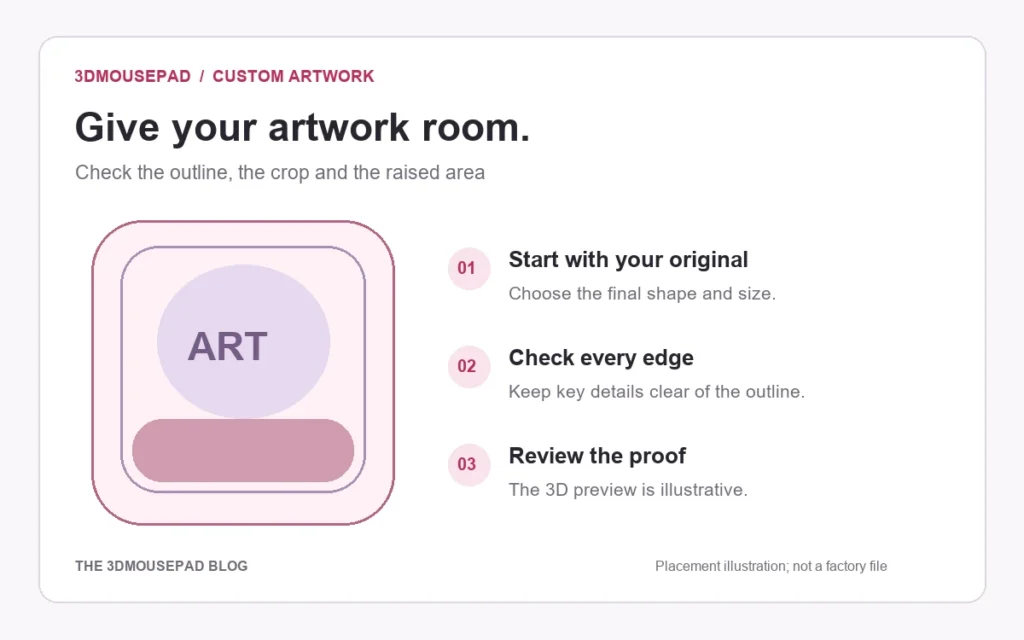
Check each character and its small marks, then look at the whole phrase. A thin decorative stroke or tightly packed line can be difficult to judge in a reduced preview. Do not solve every legibility problem by stretching the lettering or enlarging it until it reaches the pad edge. Simplify the composition or give the text more room if necessary. The text-placement guide covers keeping essential lettering away from the curved outline and raised support. There is no universal minimum text size established by this article.
Inspect the exported image, not only the editable document
The store accepts genuine JPG, PNG and WebP images up to 20 MB, as explained in the custom artwork guide. Text in that exported picture is part of the image, rather than an editable text layer for the studio to correct. Open the actual export and compare it character by character with your approved wording. Look for lost accents, clipped marks, changed line breaks and unexpected spaces. Keep the editable original as well; correcting a typo is easier before it becomes part of a flattened picture.
Check again after placing the image on the pad
Choose the final family and size in the custom studio, then review the crop. Inspect the flat layout for all of the lettering and the 3D views for its relationship to the illustrative raised area. Avoid putting a small but essential mark across a cut edge or a strong curve. A screen view can help you spot a placement problem, but it does not certify translation, exact fabric detail or a supplier-approved production result. Review the current resolution warning after changing size or zoom.
Make the production approval specific
Compare the production proof with the approved wording and the final exported file, rather than relying on memory. Tell the reviewer which lettering and revision matter. If you need help with placement, contact the store before approval, but do not assume the store provides translation or proofreading in every language. Resolve uncertain wording with a qualified reader first. Saving the design or placing it in a cart does not start production; the accepted order and reviewed proof remain separate steps.
Prepared by the 3DMousepad store team using our product specifications and published store guides. Product illustrations are not scale drawings. Check the product page for the current options, price and availability. Ask us about your setup or suggest a correction.
Keep exploring
Low-Sensitivity Gaming on a 3D Mousepad: Measure Your Mouse Travel
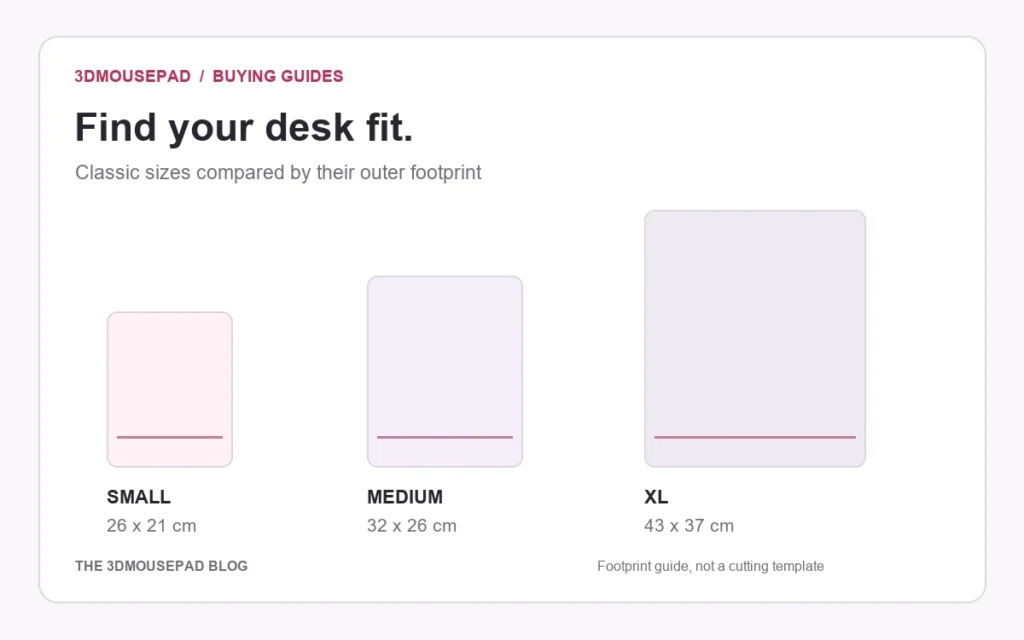
Measure your actual mouse movement before choosing a raised mousepad. Compare the clear movement area as well as the outer dimensions and support height.
Spilled a Drink on Your 3D Mousepad? A Gentle Cleanup Checklist
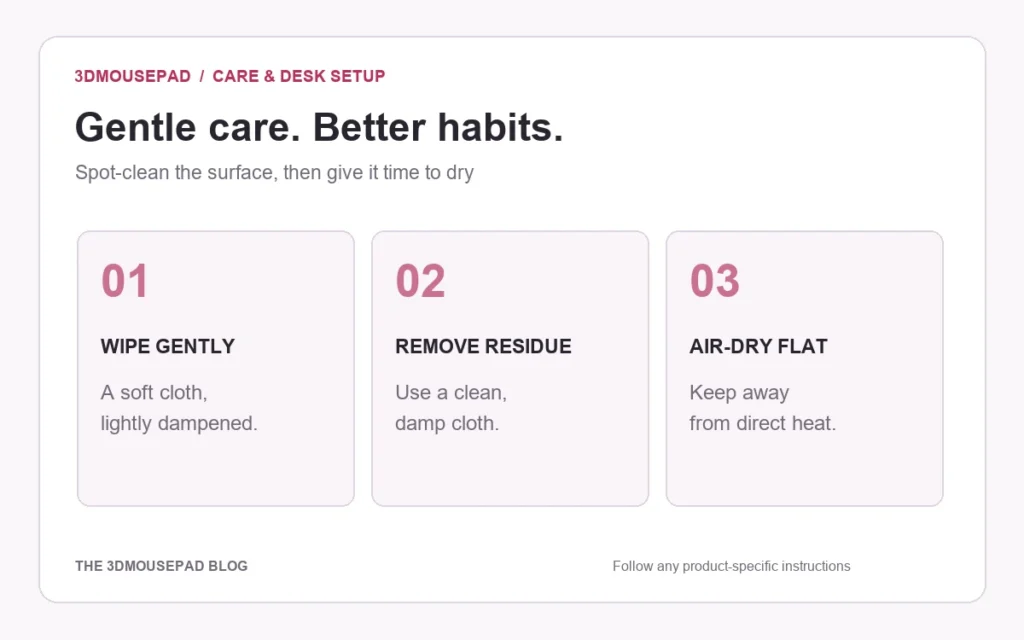
Lift off surface liquid, clean gently and air-dry flat after a drink spill. Avoid soaking or squeezing the raised support, and stop if damage is visible.
Custom Mousepad Image Not Uploading? Check the File and Save Step
Find out whether a custom mousepad image is blocked by its format, dimensions, review checks or connection, while keeping your original and layout safe.