Custom artwork
Should You Mirror Your Custom Mousepad Artwork?
Upload artwork in the orientation you want customers to see, then check lettering and asymmetric details in the flat layout before approving the proof.
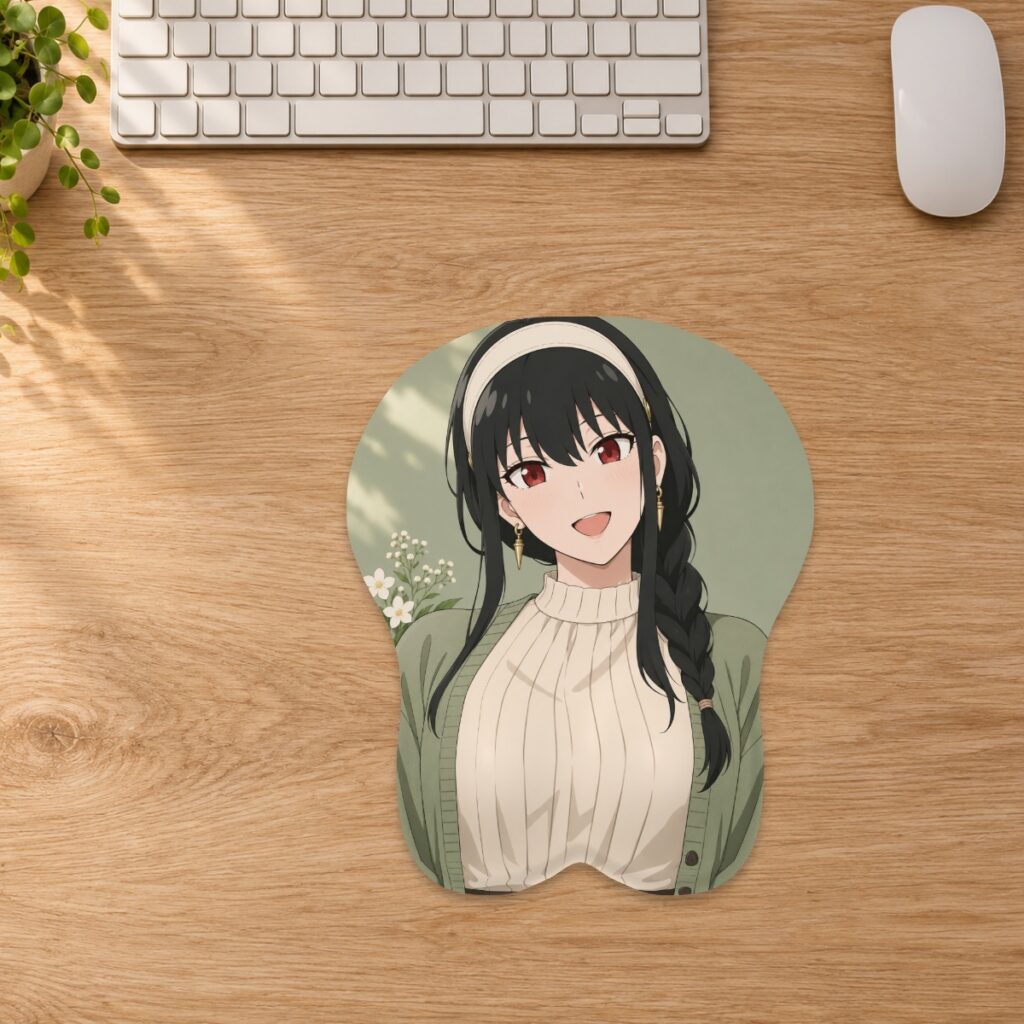
Upload artwork in the orientation you want customers to see, then check lettering and asymmetric details in the flat layout before approving the proof.
Start with the intended viewing orientation
Prepare your customer upload so the image reads the way you want it to appear on the finished pad. Do not mirror it merely because another printing tutorial uses that step. Any manufacturing-stage transformation should be agreed with the store or supplier. If you are supplying a specialist production file rather than an ordinary studio upload, ask for the required orientation before exporting it.
Use a detail that has a definite left and right
Text is a convenient orientation check, but it is not the only one. Look for a known asymmetry in your source: a jacket badge, a hair part, a distinctive accessory or a pet’s marking. Compare the exported upload with the original. A composition without text can still be unintentionally reversed, and a character facing the other direction may change the design you intended.
Distinguish rotating from reversing
A file that appears sideways may need rotation rather than mirroring. Compare the top of the head, the direction of any lettering and the pad’s upright outline. The studio provides placement, zoom and rotation controls as described in the custom guide. If you need to reverse an image intentionally, prepare that change in your artwork editor and review the result before uploading; do not assume a rotation will reverse left and right.
Use the flat layout as your main orientation reference
A 3D preview can be rotated to show a different viewing angle. Use the flat layout to compare the image directly with your intended source, then review Front and Side views to understand the raised shape. Keep lettering, faces and essential details clear of the curved edge and raised support. These digital views help review placement, but they do not replace the supplier-approved production proof.
Check a mixed design in more than one place
For example, suppose the image combines a portrait, a jacket badge and a short name. Read the name, check the badge against the source and confirm which way the face points. If text was added separately after a portrait was flipped, readable text alone will not establish that the portrait is correct. Review both characters when using a two-character composition, rather than checking only the larger one.
Make the approved revision unambiguous
Keep the original, the final upload and the selected size layout clearly named. Tell the store if a reversal was intentional, especially when an earlier revision used the opposite orientation. Compare the production proof with that final revision before approval. If anything is unclear, ask the team before accepting it. Our revision checklist explains how to keep the handoff clear.
Prepared by the 3DMousepad store team using our product specifications and published store guides. Product illustrations are not scale drawings. Check the product page for the current options, price and availability. Ask us about your setup or suggest a correction.
Keep exploring
Will a 3D Mousepad Fit on Your Keyboard Tray?
Check usable width, front-to-back space and closing clearance before placing a raised mousepad on a keyboard tray or pull-out shelf.
Collection Design or Custom Mousepad: Which Route Fits Your Order?
Compare choosing an existing mousepad design with uploading your own artwork, including the decisions, shape options and preparation stages involved.
JPG, PNG or WebP: Which File Should You Upload?
Choose an upload format for your custom mousepad by checking transparency, fine edges and file size while preserving your best original artwork.