Custom artwork
Which Artwork File Is Final? A Custom Mousepad Revision Checklist
Keep your original artwork, size layout and approved revision easy to identify with a simple file checklist before ordering a custom mousepad.
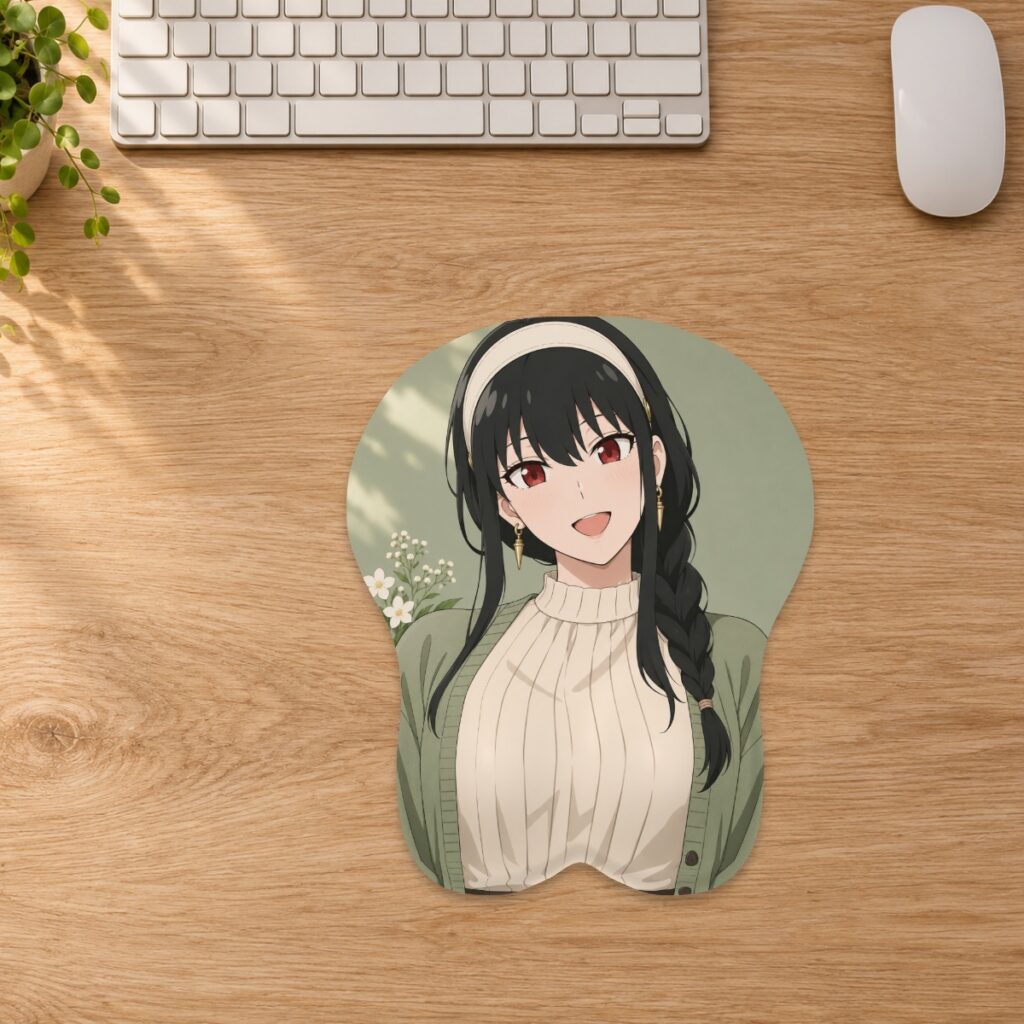
Keep your original artwork, size layout and approved revision easy to identify with a simple file checklist before ordering a custom mousepad.
Keep the source and the ordering copy separate
Keep an untouched copy of the best original artwork. Make a separate working copy for background changes, text or other edits, then export the file you intend to upload. A screenshot of the editor is useful for explaining an issue, but it should not replace the source image. The store accepts genuine JPG, PNG and WebP files up to 20 MB. See the custom artwork guide for upload and placement requirements.
Use names that identify a specific revision
For example, use portrait-original.png, portrait-classic-small-v02.png and portrait-classic-small-v03.png. These are organizational examples, not required upload names. Add a short note describing what changed: “v03 moves the lettering inward; character scale unchanged.” Avoid keeping several different files all named final.png. If someone helps with the artwork, agree which revision is the current candidate before uploading it.
Treat a different size as a separate layout
A layout reviewed for one size should not silently become the approved layout for another. Record the shape and selected size beside the revision name. When switching between classic and full-body shapes, or between sizes, check the crop again in the custom studio. The original image can stay the same while its placement changes. A useful note is: “Classic, Small, v03; face clear of edge; lettering checked in flat view.”
Compare revisions using the same view
Check the old and new layouts at the same orientation and comparable zoom. Review one intended change at a time: character placement, text, background or crop. Then inspect the whole layout for unintended changes. Use the flat view to compare boundaries and the 3D preview to review the illustrative raised area. A digital preview is not a supplier-approved production proof, and a saved PNG layout is not evidence that printing has started.
Make the handoff explicit
Before ordering, check that the saved design corresponds to your chosen revision and size. Keep a small record of the file name, selected option and the change you expect to see. Review the production proof against that record before approving it. Saving a design or adding it to a cart does not itself submit it for production; see what happens after saving a design.
If a newer version is needed after ordering
Contact the store promptly with the order number and a precise description of the requested change. Explain which earlier revision it replaces rather than sending several unexplained alternatives. Changes depend on whether preparation, production or dispatch has begun, so do not assume a second upload replaces an order automatically. Keep your original and approved files until fulfillment and any related support are complete. The contact page provides the current support route.
Prepared by the 3DMousepad store team using our product specifications and published store guides. Product illustrations are not scale drawings. Check the product page for the current options, price and availability. Ask us about your setup or suggest a correction.
Keep exploring
Before You Order: Check Your Mousepad Delivery Address
Check the recipient, apartment details, postal code and available delivery service before ordering a mousepad, especially when sending a gift.
How to Photograph a Mousepad for a Support Request
Send clear overview, detail and packaging photos so the store can understand a mousepad concern without guessing from a single close-up.
Choosing a Background for Your Custom Mousepad
Choose a background that supports your character artwork, makes curved crops easier to review and keeps important details clear on a custom mousepad.