Custom artwork
Choosing a Background for Your Custom Mousepad
Choose a background that supports your character artwork, makes curved crops easier to review and keeps important details clear on a custom mousepad.
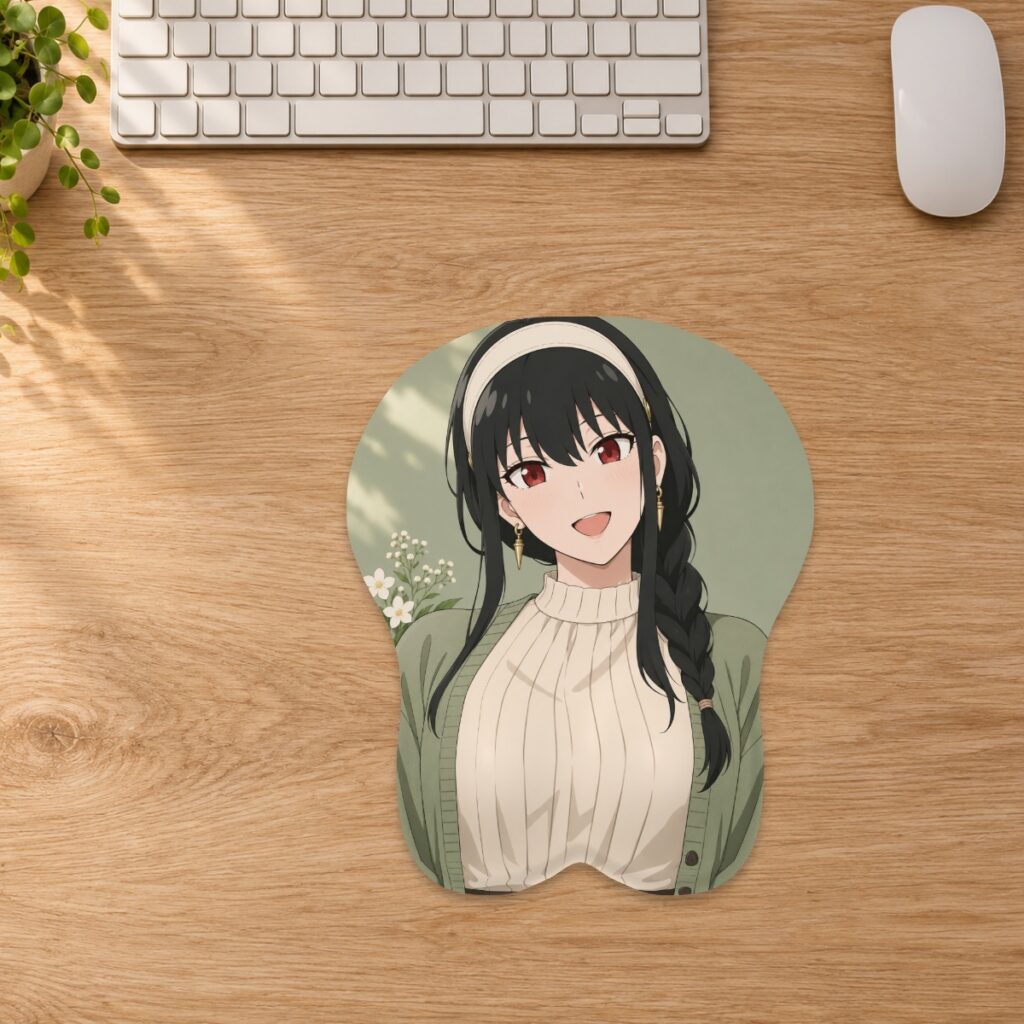
Choose a background that supports your character artwork, makes curved crops easier to review and keeps important details clear on a custom mousepad.
Start with the artwork you actually have
Before choosing a color, check whether your source contains a complete scene, a solid background or a character cutout. A white rectangle in the file is part of the artwork; it is not automatically empty space. Likewise, a checkerboard visible inside a saved picture may be printed into that picture rather than indicating transparency. Open the original file and inspect the edges before uploading. The store accepts genuine JPG, PNG and WebP files up to 20 MB; use the original rather than a screenshot of an image editor.
Compare a quiet background with a detailed one
A simple background can make hair, clothing and the character outline easier to read. A busy scene can add context, but its small features may compete with the character or disappear near a curved edge. Make two versions of the same composition with the same character size: one with a restrained background and one with the scene you prefer. Compare the face, hands and silhouette first. This is a visual design exercise, not a claim that one color or style prints better in every case.
Treat exposed borders as part of the design
In the custom studio, Fill pad covers the selected shape by cropping excess artwork. Fit image shows more of the source and may leave a border; curved edges can still crop corners. Choose a background color that works with any exposed area, then inspect the entire outline. A border that appears balanced around a rectangle may become uneven on the mousepad silhouette. If preserving the whole illustration matters more than filling every edge, compare both placement modes before deciding.
Check fine edges before judging the overall color
Inspect loose hair strands, pale clothing and small accessories against the proposed background. A light outline left around a cutout may become obvious against a dark color; a dark outline may stand out against a pale one. If an edge looks rough, return to the original artwork rather than trying to disguise it by enlarging the image. Zooming changes the crop and effective resolution. Follow the artwork preparation guide and check the studio warning again after any size or placement change.
Review the background on the chosen shape
Choose the final family and size before approving the composition. Look at the flat layout for missing corners and accidental borders, then rotate the 3D preview to inspect the raised area. Keep essential details away from the cut edge and support, as described in the custom artwork guide. A shadow in the original illustration can combine visually with the shape shown in a render; check that the result still reads clearly. The digital preview does not replace a reviewed production proof.
Save the versions you can identify
Keep the original source and name your exported layouts by size and background choice, such as small-cream-background and medium-dark-background. Do not overwrite the only editable copy. Review the chosen version before ordering so a discarded color study is not mistaken for the final design. Monitor settings, fabric and the raised surface can affect appearance. If exact color matching or positioning is essential, ask the store before ordering rather than treating an on-screen color as a guaranteed physical match.
Prepared by the 3DMousepad store team using our product specifications and published store guides. Product illustrations are not scale drawings. Check the product page for the current options, price and availability. Ask us about your setup or suggest a correction.
Keep exploring
How to Photograph a Mousepad for a Support Request
Send clear overview, detail and packaging photos so the store can understand a mousepad concern without guessing from a single close-up.
Adding a Name to a Custom Mousepad: Placement Checks
Keep names and short messages readable on a custom mousepad by checking contrast, crop, curved edges and the raised support before approval.
Taking a 3D Mousepad Between Desks
Plan how to carry and set up a raised mousepad without folding the support, packing it damp or relying on a product photo for scale.