
Buying guides
Choosing a 3D Mousepad for a Left-Handed Desk Setup
Check support position, usable desk space and mouse button settings before choosing a 3D mousepad for a left-handed setup.
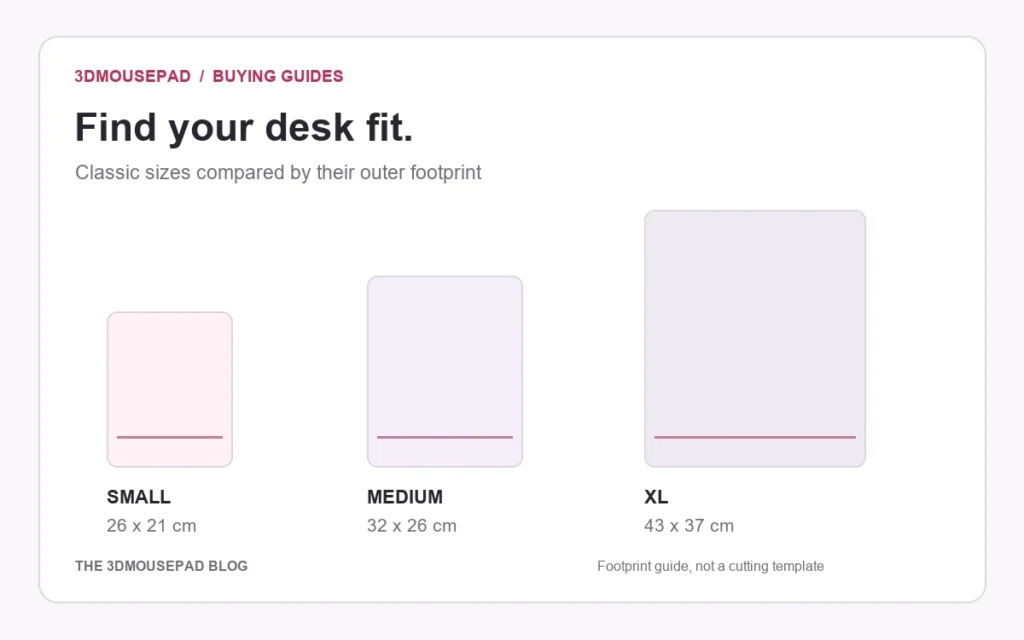
Check support position, usable desk space and mouse button settings before choosing a 3D mousepad for a left-handed setup.
Review the actual support style
Start with the shape and support position of the option you intend to buy. A desk photograph showing a mouse on the right of a keyboard does not establish how the same product will fit your left-handed arrangement. Likewise, a Small or XL label alone does not specify handedness. Review the selected style and ask about anything unclear before ordering. This checklist helps you evaluate a layout; it does not certify every mousepad and mouse combination as ambidextrous.
Measure the space on the left of your keyboard
Keep the keyboard where you actually type, then measure the available width and depth on its left. Include any monitor stand, laptop support or other fixed obstruction. Classic Small has a listed outer footprint of 26 cm long by 21 cm wide; use the size guide for the other options. A paper rectangle can help reserve that outer area, but it does not reproduce the cut outline, raised height or usable mouse movement area. Leave room for the movements you make beyond the mouse’s resting position.
Separate desk position from artwork orientation
Moving the pad to the left of the keyboard does not itself require mirroring the illustration. Keep the intended top and bottom of the product clear when reviewing the support position. Turning a pad sideways changes where the support sits, not just which way the artwork faces. For a custom composition, decide whether you actually want a mirrored image for visual reasons. Our mirroring guide explains why lettering and asymmetric details need another check before approval.
Keep primary-button preferences separate from pad choice
If you want to change which mouse button performs the primary action, that is a device or operating-system setting. Microsoft’s mouse settings guide explains the Windows 11 route through Settings, Bluetooth & devices, then Mouse, where Primary mouse button can be set to Left or Right. Use the preference that suits you; left-handed users do not all need the same button arrangement. Changing the pad does not swap those functions.
Check the route to your connection
For a wired mouse, moving from one side of the keyboard to the other can change where the cable passes. Check for a keyboard corner, desk edge or object that catches it during normal movements. Keep the loose cable clear of the raised support. The wired-mouse layout guide gives a fuller clearance routine. If you share the desk with a right-handed user, check each person’s arrangement separately instead of assuming that shifting the pad is the only change needed.
Ask a specific question before choosing the option
If the fit is uncertain, contact the store with the product link, selected size and support style, your mouse model and the usable desk measurements. Identify whether the concern is footprint, raised height or movement clearance. Those are more useful details than a general request for a left-handed version. Confirm the intended option before ordering, and keep that information with your order so later questions refer to the same product configuration.
Prepared by the 3DMousepad store team using our product specifications and published store guides. Product illustrations are not scale drawings. Check the product page for the current options, price and availability. Ask us about your setup or suggest a correction.
Keep exploring
HEIC Photo for a Custom Mousepad? Make an Accepted Upload Copy
Convert an HEIC photo into a genuine JPEG or PNG upload copy, then check its orientation, detail and size before using the custom mousepad studio.
Wide Artwork on a 3D Mousepad: Compare Crop and Background Space
Use a worked landscape-image example to compare Fill pad and Fit image, then check curved edges and the raised area at your chosen mousepad size.
Why Custom Mousepad Colors May Differ from Your Screen
Review source files, viewing conditions and proof limits when color matters for a custom mousepad, with practical checks before and after ordering.