Custom artwork
HEIC Photo for a Custom Mousepad? Make an Accepted Upload Copy
Convert an HEIC photo into a genuine JPEG or PNG upload copy, then check its orientation, detail and size before using the custom mousepad studio.
Convert an HEIC photo into a genuine JPEG or PNG upload copy, then check its orientation, detail and size before using the custom mousepad studio.
Keep the original and check the actual format
The custom studio currently accepts genuine JPG, PNG and WebP images up to 20 MB. If the photo you want to use is HEIC or HEIF, make an accepted upload copy while keeping the original. Changing the filename ending from .heic to .jpg does not convert the image data. A screenshot is also a poor substitute for an intentional export because it may include a smaller view, interface elements or unwanted borders. Start with the source photo you want printed.
Export a compatible copy on a Mac
Apple’s HEIF media guidance describes manual conversion by opening an HEIF image in Photos or Preview on a Mac, choosing File, then Export, and selecting JPEG or PNG before saving. Save this as a separate file you can identify, such as pet-portrait-upload.jpg. Choose the JPEG or PNG format itself, not another similarly named export type. If you use a different device, use an application that can actually read the source and export an accepted format; the same conversion-versus-renaming distinction applies.
Reopen the exported file before uploading
Check the saved copy outside the export dialog. Confirm that it shows the intended photo, the correct orientation and the complete crop. Compare important areas such as eyes, hair, fur and any lettering with the original at a similar zoom. Inspect whether the export resized the image or introduced visible compression. Keep the filename distinct from any older candidate so you do not upload the first test by mistake. If something changed unexpectedly, return to the original and review the export settings.
Check file size and pixel dimensions separately
The 20 MB limit is a file-size limit, not a guarantee that the photo contains enough detail for every pad size. Record the exported pixel dimensions as well. If the file is too large, make another export from the original and inspect the result rather than repeatedly saving a compressed copy. Avoid choosing a small thumbnail merely because it uploads quickly. Our upload-format guide explains the trade-offs among the accepted formats.
Review the converted photo at the final size
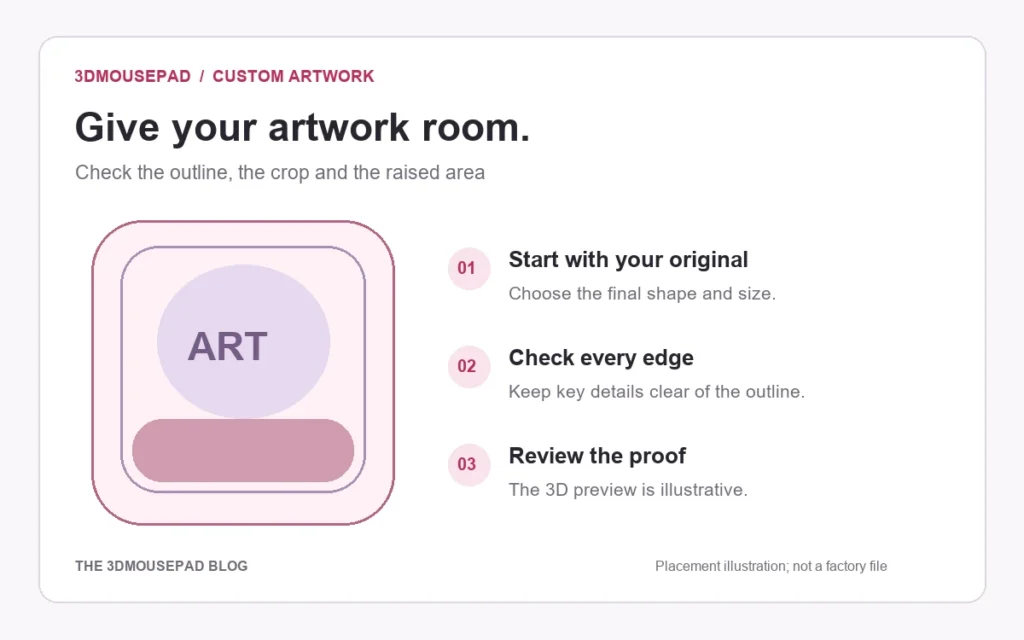
Open the custom studio, choose the pad family, size and style, and upload the converted copy. Compare Fill pad and Fit image before making final placement adjustments. Cropping and zooming affect effective resolution, so use the studio’s current reading for that layout. The artwork guide recommends 300 DPI at print size and requires acknowledgement below 150 DPI. Format conversion makes a file compatible; it does not recover detail missing from the source.
Describe a remaining upload problem clearly
If the exported file is still rejected, note its actual format, file size, pixel dimensions and the message shown by the studio. Include the device and browser when you ask the store for help. This gives support something specific to investigate without needing unrelated personal files. Retain the original and the selected export for later proof review. A successful upload confirms acceptance of that file, while the crop and production proof still need their own review.
Prepared by the 3DMousepad store team using our product specifications and published store guides. Product illustrations are not scale drawings. Check the product page for the current options, price and availability. Ask us about your setup or suggest a correction.
Keep exploring
Choosing a 3D Mousepad for a Left-Handed Desk Setup
Check support position, usable desk space and mouse button settings before choosing a 3D mousepad for a left-handed setup.
Wide Artwork on a 3D Mousepad: Compare Crop and Background Space
Use a worked landscape-image example to compare Fill pad and Fit image, then check curved edges and the raised area at your chosen mousepad size.
Why Custom Mousepad Colors May Differ from Your Screen
Review source files, viewing conditions and proof limits when color matters for a custom mousepad, with practical checks before and after ordering.