Custom artwork
Hand-Drawn Art on a Custom Mousepad: Scan and Prepare the Original
Prepare a scan of your drawing for a custom mousepad, with checks for enlargement, paper background, line detail and the final shaped crop.
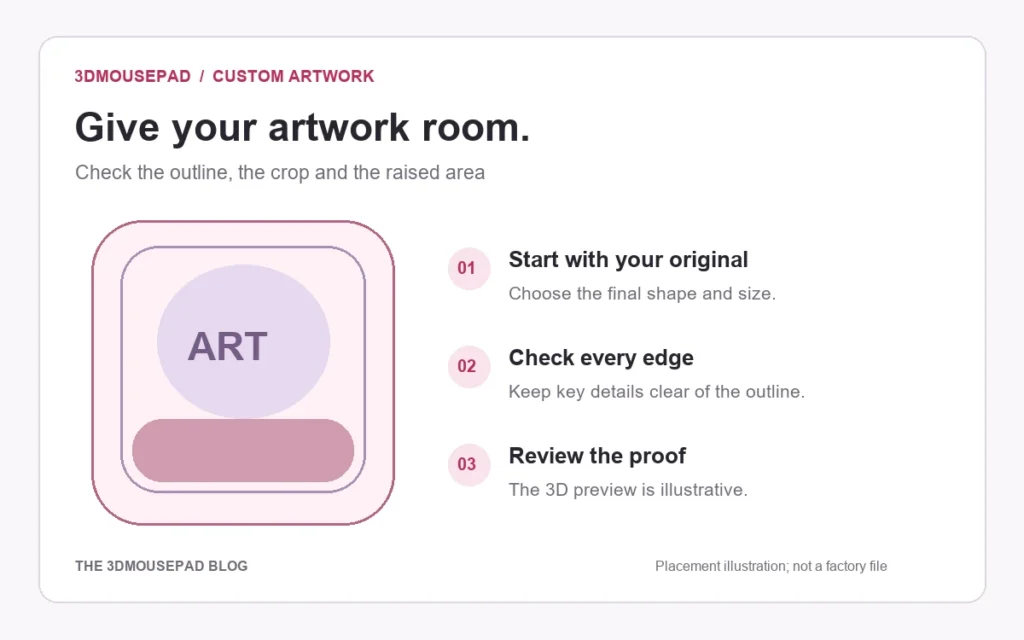
Prepare a scan of your drawing for a custom mousepad, with checks for enlargement, paper background, line detail and the final shaped crop.
Decide what belongs in the reproduced artwork
Start with a drawing you created or have permission to reproduce. Decide whether the paper texture, handwritten signature and surrounding space are intentional parts of the design. Remove loose notes from the capture area without altering the original. Keep the physical drawing safe and work on a digital copy for edits. A sketchbook page and a finished cutout call for different background choices, so settle that intention before removing every trace of the paper.
Capture the drawing without cutting off useful space
Use a scanner appropriate for the original and follow its instructions for the material. Preview the whole drawing before setting the capture area, including any signature or fine detail you want to keep. Check the resulting image rather than assuming an automatic crop selected everything correctly. If you use a photograph instead, examine it for perspective distortion, glare and shadows before treating it as the master. The scan or photo becomes the source for later placement; the studio cannot recover a missing corner of the original.
Allow for enlargement when choosing scan resolution
Epson’s scanning guidance explains that enlargement after scanning calls for a corresponding increase in capture resolution. For example, a drawing 14 cm wide scanned at 300 DPI and reproduced 21 cm wide would have about 200 pixels per inch at that size: 300 × 14 ÷ 21. This is a simplified enlargement example before additional cropping. It is not a mousepad template or a promise of print quality. Use your scanner’s capabilities and check the actual exported pixels.
Review paper and line detail in a separate working copy
Inspect pale pencil lines, dark outlines and textured areas before making adjustments. An automatic cleanup that makes the paper look white may also change a faint part of the drawing, so compare the copy with the original capture. If you remove the background, inspect the full edge of the subject and any enclosed spaces. Keep both versions until you choose. The background guide explains why a white rectangle saved in an image remains part of the artwork.
Export the image you want to upload
Save a clearly named upload copy in a genuine JPG, PNG or WebP format within the current 20 MB limit. Reopen it to confirm the crop, orientation and visible detail. A PDF scan or an editable artwork document needs an appropriate image export; changing its filename does not convert it. Preserve your best capture separately so a later revision starts from that source. The custom artwork guide recommends 300 DPI at print size and explains the studio’s effective-resolution warning.
Fit the drawing to the selected shape
Choose the final pad family, size and style in the custom studio before judging the composition. Compare Fill pad and Fit image, then inspect signatures, delicate lines and subject edges in the flat layout and the 3D view. Check the resolution again after zooming. Keep the selected export and size-specific layout together for proof review. If preserving the drawing’s full outline or a particular color is essential, discuss that requirement before approving production.
Prepared by the 3DMousepad store team using our product specifications and published store guides. Product illustrations are not scale drawings. Check the product page for the current options, price and availability. Ask us about your setup or suggest a correction.
Keep exploring
Return Shipping a 3D Mousepad: Protecting Its Raised Shape
Confirm return instructions first, then choose packaging that supports the mousepad without folding it or compressing the raised area.
Moving a Custom Mousepad Project from Phone to Computer
Keep the original artwork and layout reference when changing devices, then recreate and check the intended custom mousepad placement on the new screen.
Ordering a Mousepad to an APO, FPO or DPO Address: Confirm Service First
Check service availability, address details, delivery charges and timing with the store before ordering a mousepad to an APO, FPO or DPO destination.