Custom artwork
Choosing a Pet Photo for a Custom 3D Mousepad
Choose a pet photo with a clear face and room around the subject, then check how ears, paws and markings fit the curved mousepad layout.
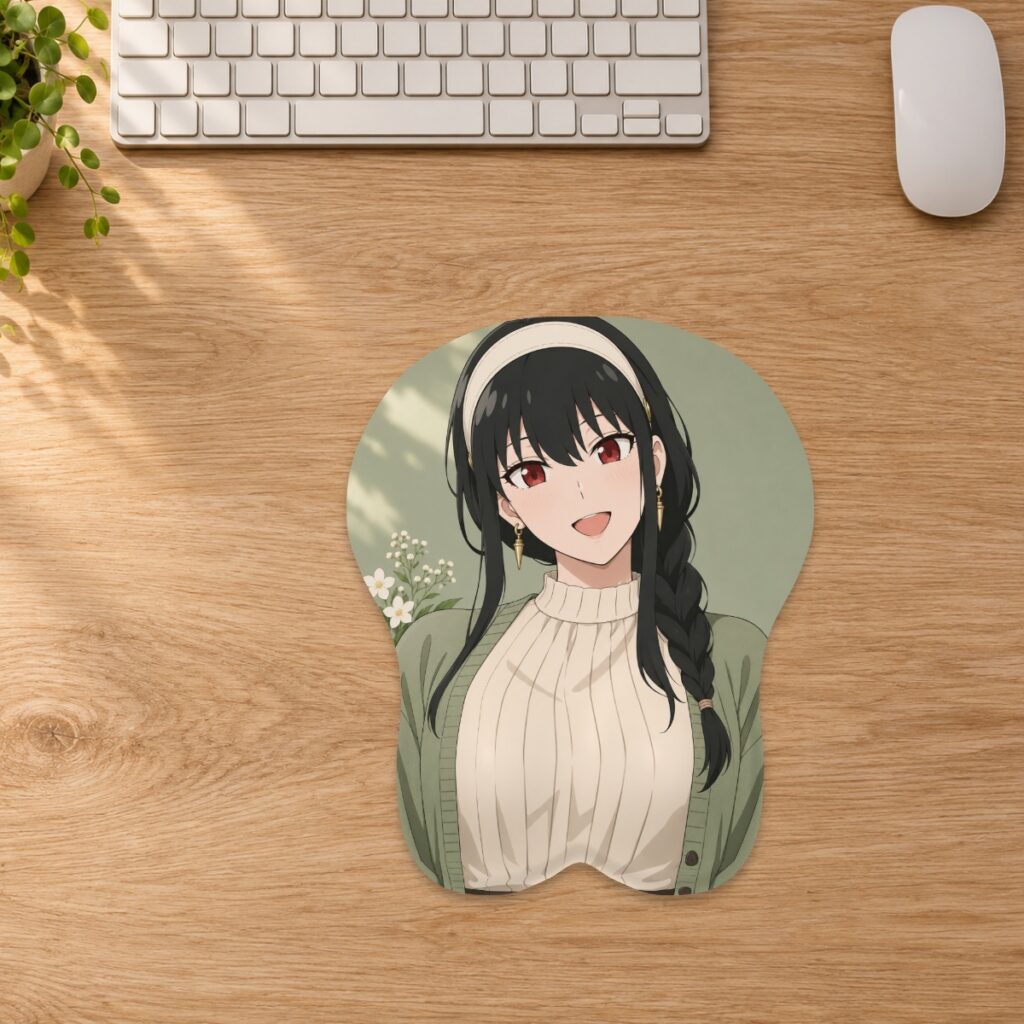
Choose a pet photo with a clear face and room around the subject, then check how ears, paws and markings fit the curved mousepad layout.
Shortlist the photo before editing it
Start with two or three original photos you took or have permission to reproduce. Look for a face you can see clearly and the expression you actually want on your desk. Open each file at its original size: if the eyes or a distinctive marking already look blurred, choosing a different shot is more useful than assuming an enlargement will recover the detail. Keep an untouched original while you compare candidates.
Leave room for ears, whiskers and paws
A tightly framed headshot may look good in a rectangular photo but become difficult to place inside a curved pad. Check whether the original includes space above the ears and beside the face. For a standing or seated pet, decide whether the paws and tail are essential to the design. If a body part was cut off when the photo was taken, moving the file in the editor cannot bring it back.
Compare a close-up with a wider portrait
Imagine two candidates: one shows a sharp face with the ear tips touching the frame; the other shows the whole head, shoulders and some surrounding space. Try both at the same pad size. The first may need to be reduced so the ears remain inside the boundary, leaving exposed background. The second may give you more freedom to enlarge or reposition the face. Choose after seeing the crop, rather than assuming the closest photo will make the best layout.
Keep the face clear of the raised support
Select the final shape and size in the custom studio before judging placement. Keep eyes, nose and important markings away from the cut edge and raised support. Use the flat layout to inspect the boundary, then Front and Side views to understand the illustrative shape. A longer portrait may suit the separate full-body format, but it still needs its own placement review; compare the dimensions and shapes first.
Check background and file quality together
A distracting object behind the pet can become more prominent when you crop. Try another photo or prepare a simpler background while retaining an original copy. Fill pad crops excess artwork; Fit image shows more of it and can leave a border. For those exposed areas, see the background selection guide. Upload a genuine JPG, PNG or WebP up to 20 MB. Check the studio’s effective-resolution reading after your final zoom, not just before cropping.
Review the individual details before approval
Compare the chosen layout with your original: are both ears intentional, is the expression recognizable, and is an important collar or marking still visible? Keep any added name away from the boundary. Save the size-specific layout and review the production proof before approving printing. The digital preview is not a finished-product photograph or a supplier-approved proof. The custom artwork guide explains resolution warnings and the approval process.
Prepared by the 3DMousepad store team using our product specifications and published store guides. Product illustrations are not scale drawings. Check the product page for the current options, price and availability. Ask us about your setup or suggest a correction.
Keep exploring
Can You Put a 3D Mousepad on Top of a Desk Mat?
Check flatness, stability and usable mouse space before layering a 3D mousepad over a desk mat. Test your own setup rather than assuming the layers will grip.
Before You Order: Check Your Mousepad Delivery Address
Check the recipient, apartment details, postal code and available delivery service before ordering a mousepad, especially when sending a gift.
Which Artwork File Is Final? A Custom Mousepad Revision Checklist
Keep your original artwork, size layout and approved revision easy to identify with a simple file checklist before ordering a custom mousepad.