Custom artwork
Why Your Custom Mousepad Preview May Look Softer Than the Original
Compare the original artwork, placement and resolution check before judging a soft studio preview. The on-screen view is separate from the uploaded source.
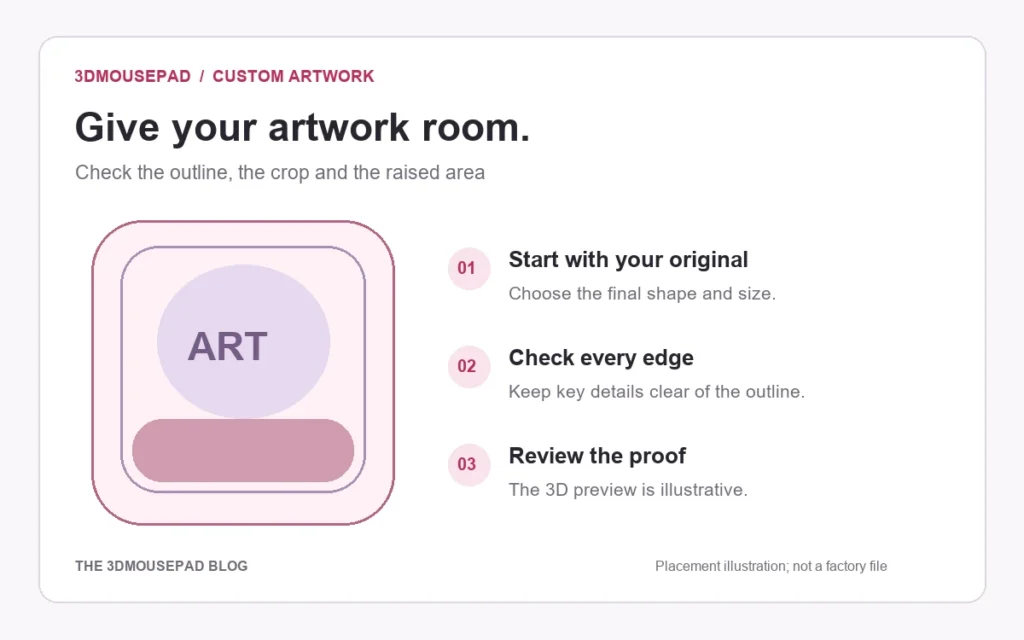
Compare the original artwork, placement and resolution check before judging a soft studio preview. The on-screen view is separate from the uploaded source.
The interactive view is not the original file at full size
The current studio uses a lighter image for interactive drawing and builds a separate on-screen preview. A large original can therefore contain more detail than is visible in that view. When the design saves successfully, the selected original file is sent separately from the generated mockup. The custom artwork guide explains that the original is preserved separately from the preview and layout. This distinction can explain some softness; it does not establish that every soft-looking image is suitable for printing.
Inspect the source before changing the design
Open the actual image you selected in an image viewer or editor and inspect its important details at 100% view. Check eyes, fine linework and lettering rather than judging only the thumbnail. If those details are already blurred or blocky in the source, the studio cannot recover the missing information. Make sure you selected the original export rather than a screenshot or a small copy from a chat. Keep that original unchanged while comparing any alternative. A larger file size alone does not prove that the drawing contains more detail.
Review the resolution check for this size and crop
The studio calculates effective resolution using the original image dimensions and the current placement, rather than the reduced interactive image alone. Choose the intended pad family and size, then check the reading after changing zoom or crop. The store recommends 300 DPI at the selected print size and requires acknowledgment below 150 DPI. Acknowledgment does not improve the file. Even a high reading does not certify that a blurry source, tiny text or a difficult composition will print well. The size guide helps establish the final format first.
Separate a placement problem from a display problem
Compare the flat layout with the front, angle and side views. Check whether a face or line of text is simply too small within the whole composition, too close to the edge or crossing a raised area. Enlarge the subject only if the resulting crop and effective resolution remain suitable. Avoid repeatedly resizing the source merely to make one screen view appear sharper. A raised-surface preview is illustrative; it cannot certify exact fabric detail, color matching or final production placement. The image-view guide explains the different roles of these views.
Keep a downloaded preview as a reference
A downloaded studio view or size layout can record the composition you reviewed, but it should not replace your source artwork in your own storage. Its usefulness is showing the intended size, crop and support position. It is not evidence of a completed order, a supplier-approved production template or a finished print. Keep the original, the selected size and the latest layout together so a support question can identify exactly which file and placement you mean.
Ask about a specific detail before approval
If the original looks clear but you cannot judge a small feature in the studio, contact the team with the size, file dimensions and a description of the area that matters. A screenshot can illustrate the concern, while the original remains the artwork source. Do not approve an uncertain detail merely because a resolution indicator is positive. Review the production proof and resolve the question before artwork approval; a successful upload or a saved preview does not by itself start production.
Prepared by the 3DMousepad store team using our product specifications and published store guides. Product illustrations are not scale drawings. Check the product page for the current options, price and availability. Ask us about your setup or suggest a correction.
Keep exploring
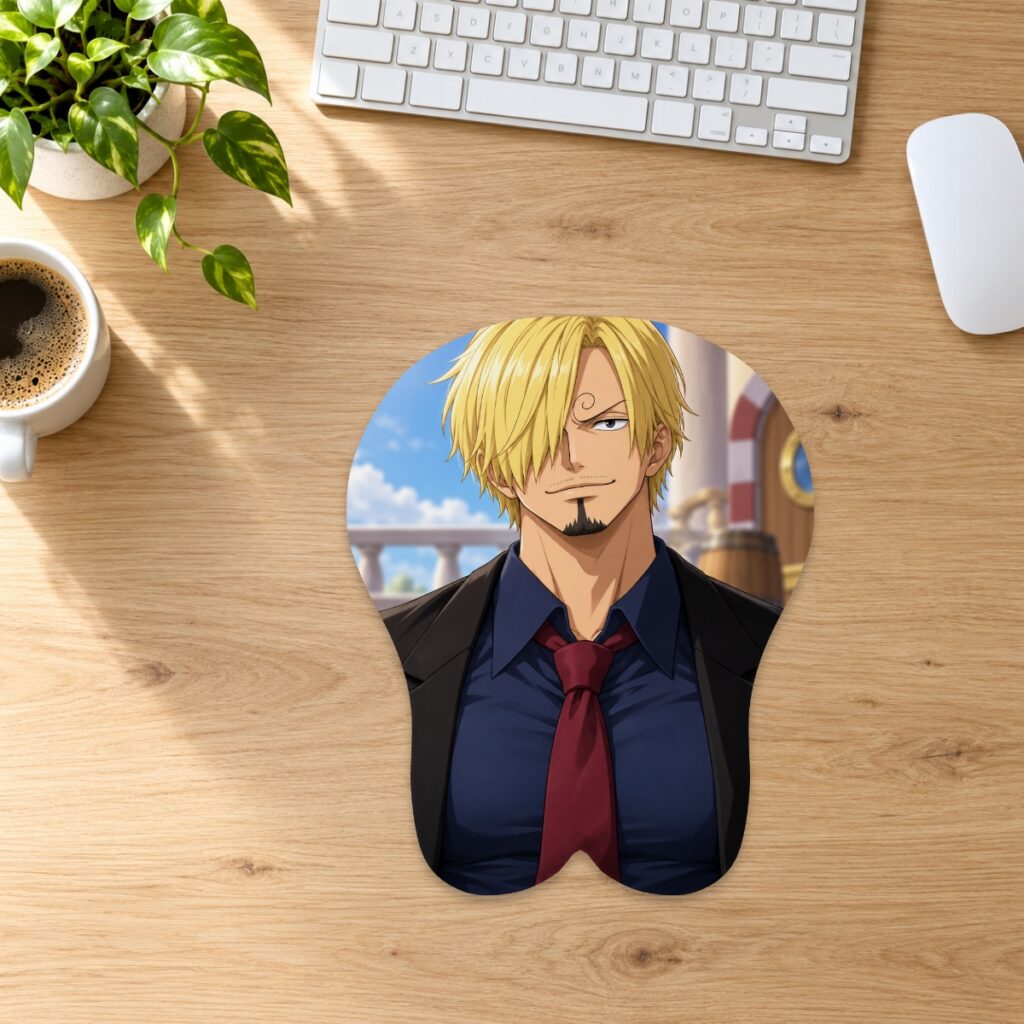
Mousepad Parcel Returned to Sender: What to Check Next
Check why the carrier is returning your mousepad, contact the store with the tracking record and confirm the next step before placing another order.
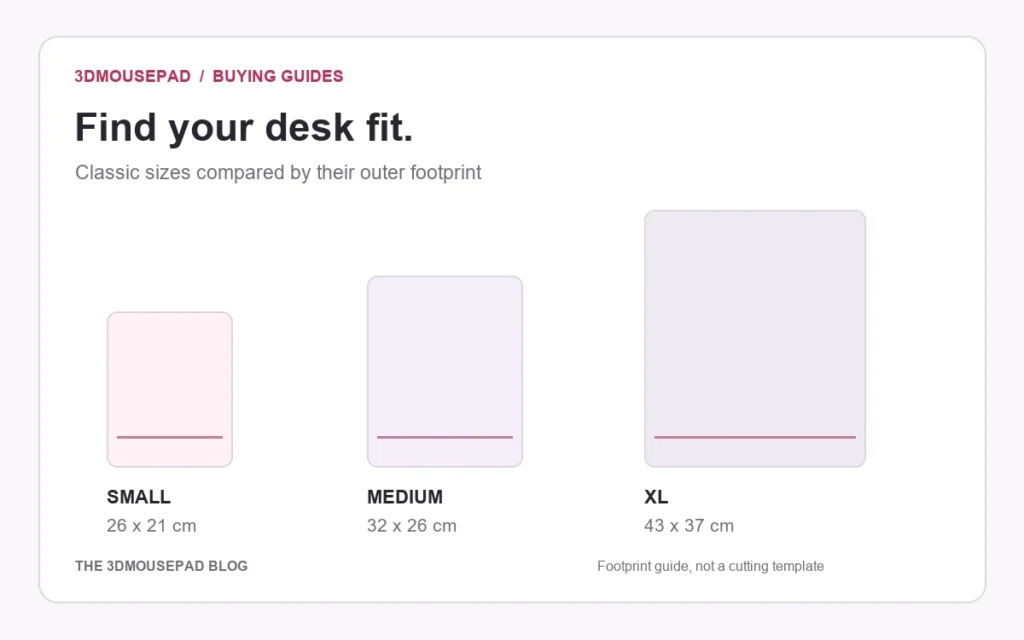
Low-Sensitivity Gaming on a 3D Mousepad: Measure Your Mouse Travel
Measure your actual mouse movement before choosing a raised mousepad. Compare the clear movement area as well as the outer dimensions and support height.
Japanese Text on a Custom Mousepad: Check Every Character
Check Japanese lettering, accents and font substitutions before exporting your mousepad artwork, then compare the saved image and production proof.