Buying guides
How to Read 3D Mousepad Images: Front, Desk and Side Views
Use each gallery view for a different buying decision, and learn why a Small digital preview does not establish the shape or scale of an XL option.
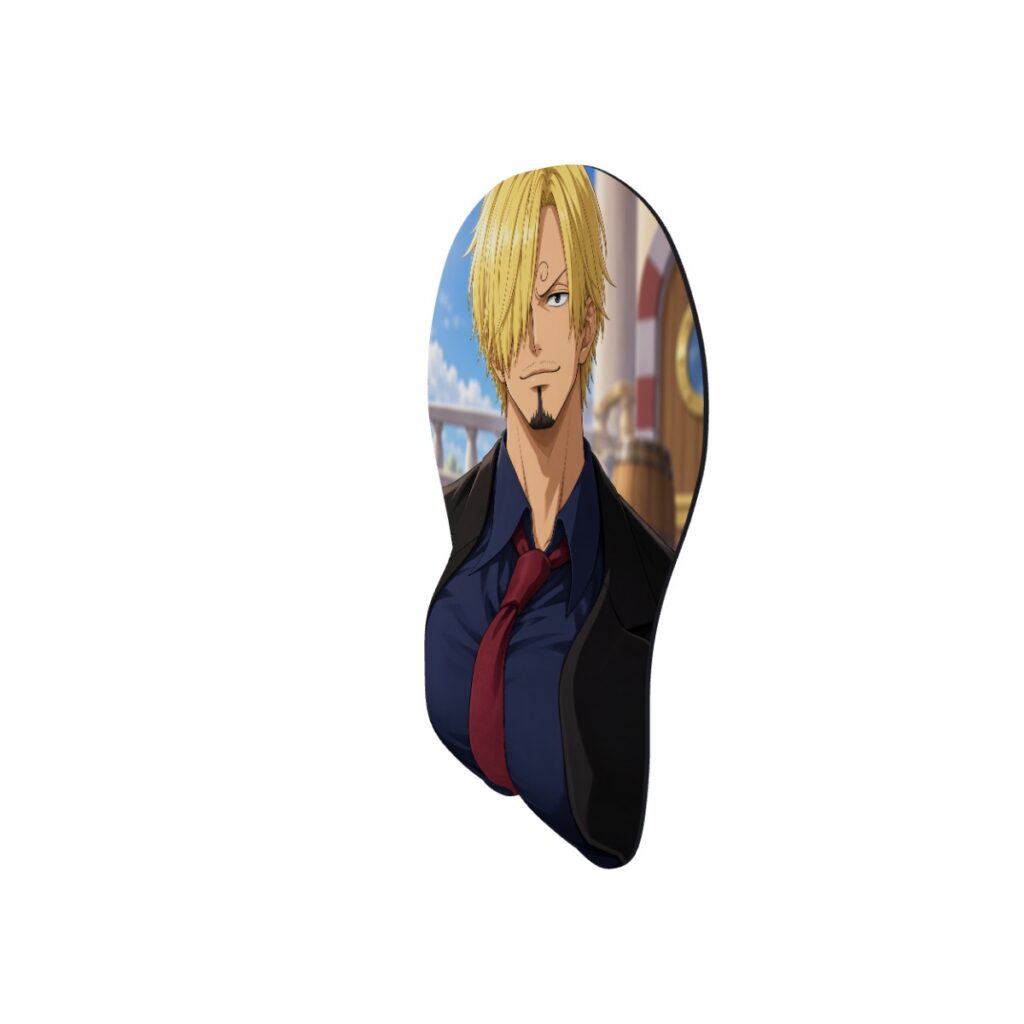
Use the front view for the artwork, the desk scene for styling and the side view for the raised shape. Then check the selected size in the written specifications. A product render can show the design clearly without establishing its exact physical size, finished print color or fit on your desk.
Our recent three-image listings use one complete product preview, one desk scene and one dedicated side view. Older listings may have a different gallery. This guide uses the Sanji Tailored Service listing as a worked example: its images depict the Small Chest shape and are labeled as digital previews.
1. Read the front image as a composition check
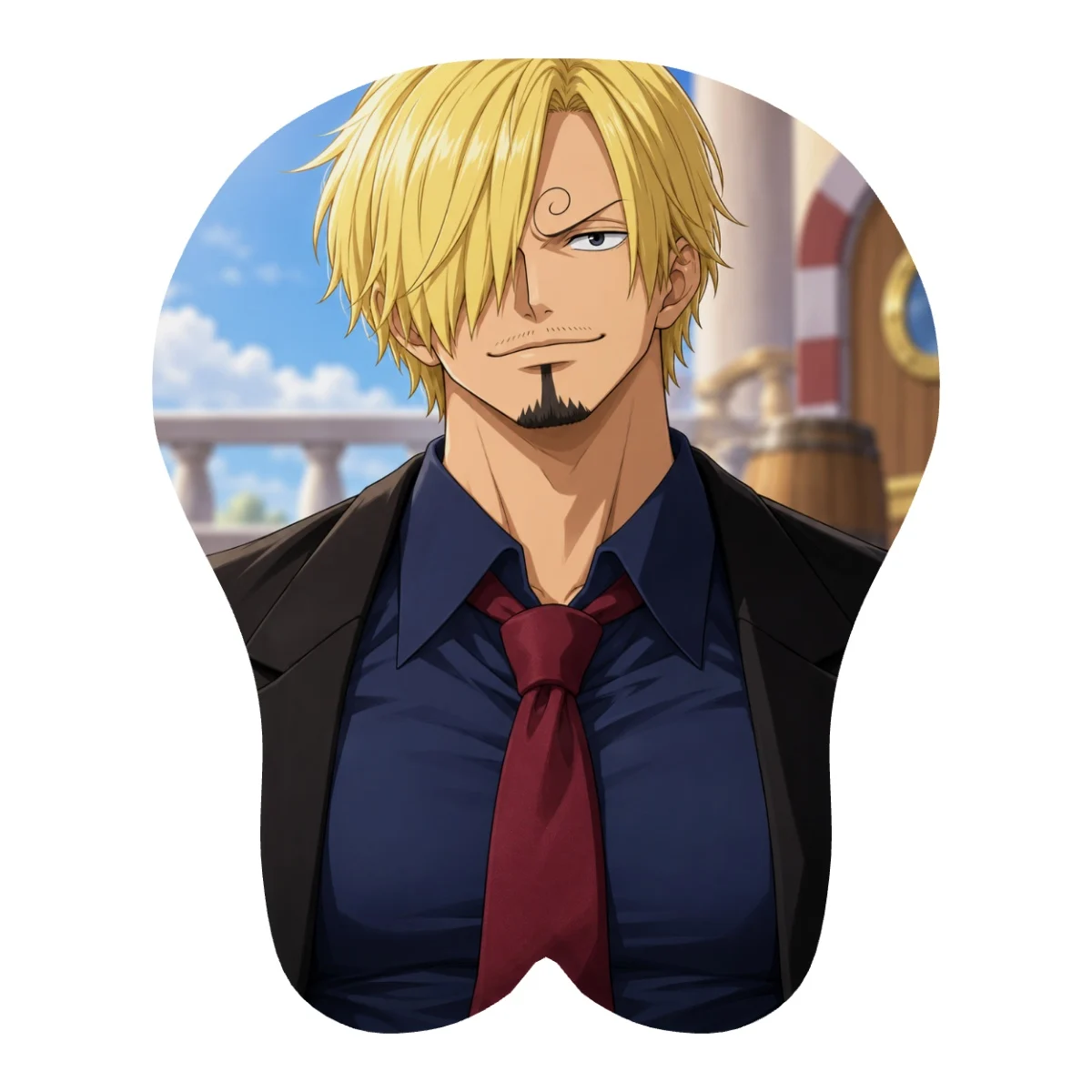
Begin with the whole outline rather than zooming straight into the face. Check whether the hair, hands, clothing and any accessories remain inside the shape. Look at how the torso meets the raised support and whether a printed detail changes direction near the central groove. A small listing thumbnail can hide these transitions.
The front image is also the best starting point for deciding whether you like the specific design. Two products featuring the same character can use different outfits, expressions and poses. Confirm the title and the actual print together rather than choosing only by the character name.
2. Use the desk scene for styling, not measurement
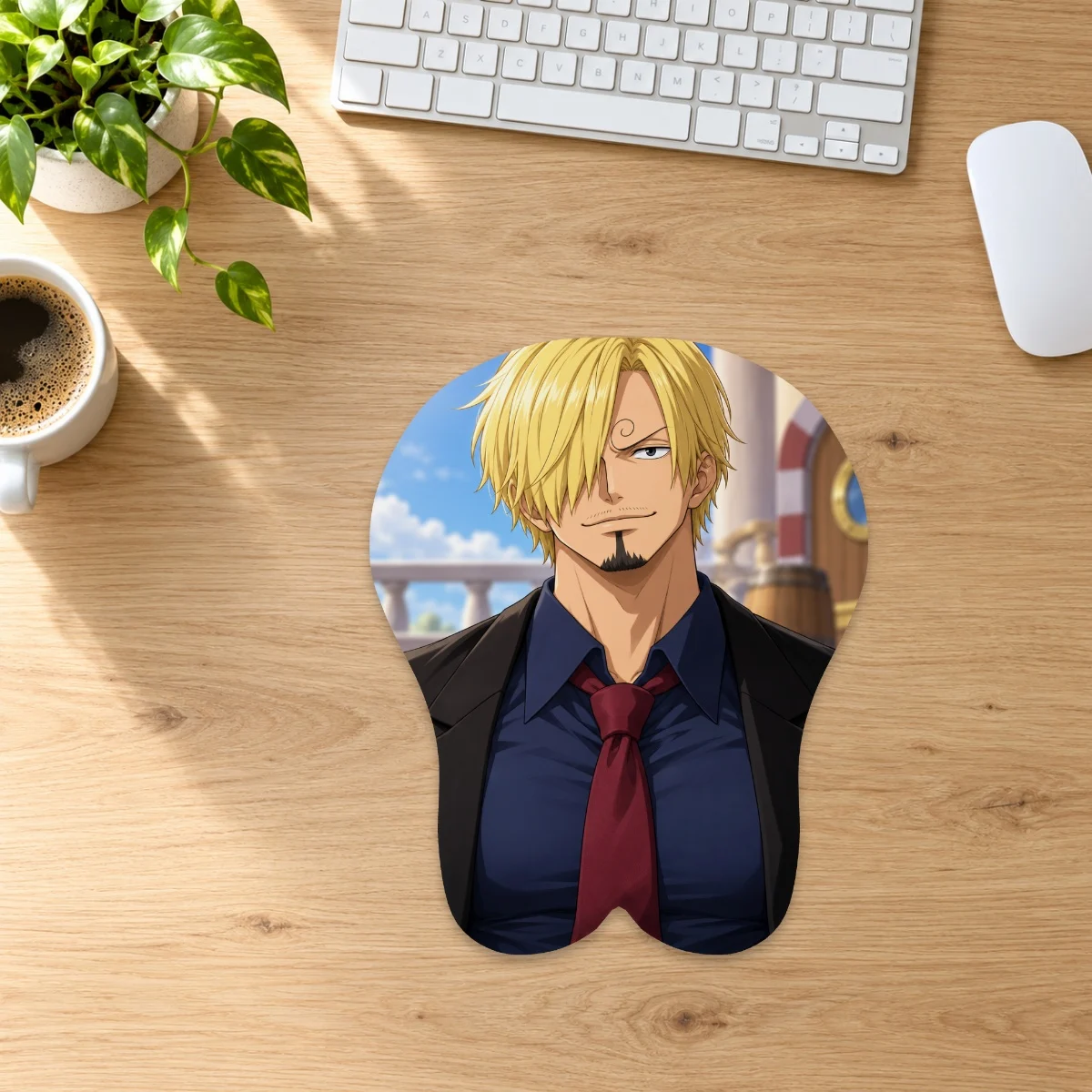
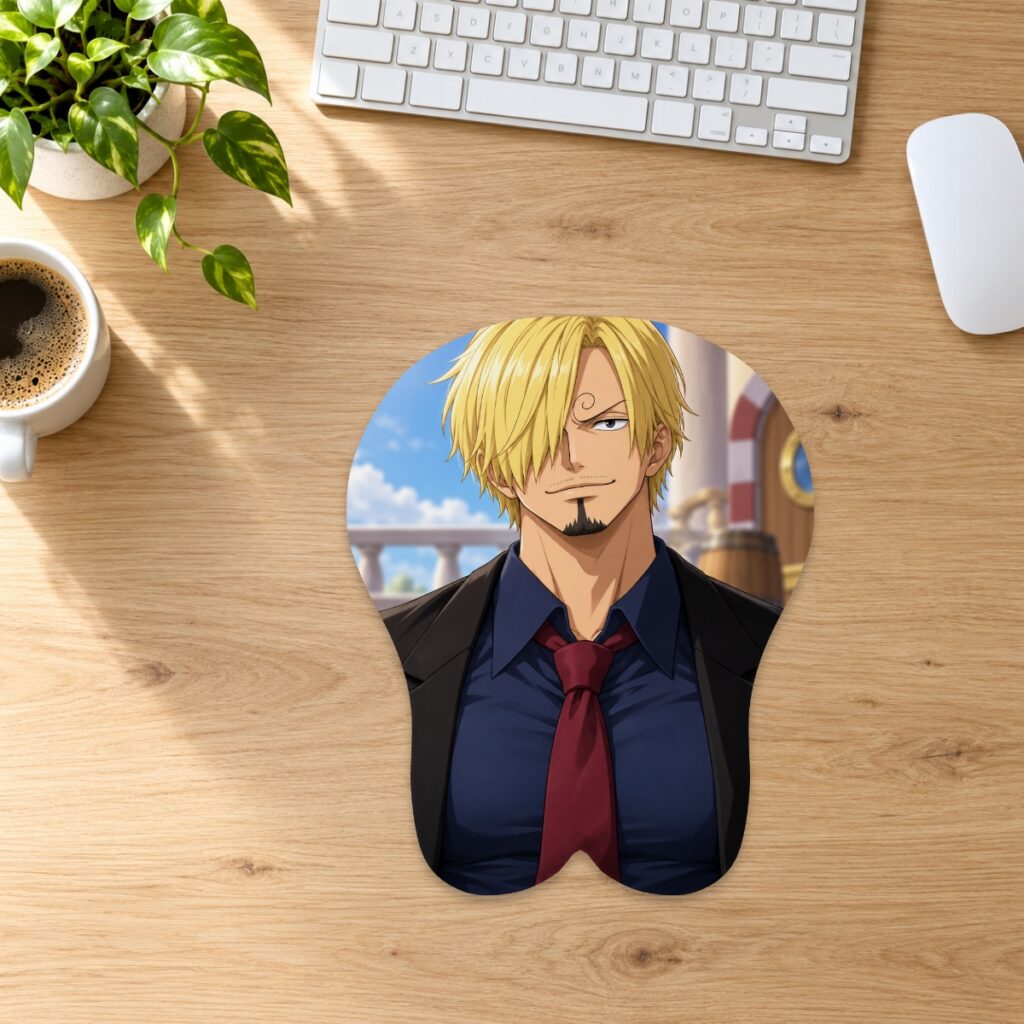
A scene helps you compare a print with a light or dark desktop, keyboard and surrounding colors. It does not establish a scale you can transfer to your own desk. The keyboard in a scene may not match yours, and perspective or image composition can make an object appear larger or smaller.
For this design, the navy shirt, dark jacket and burgundy tie provide three colors you could echo in nearby accessories. You do not need to recreate the scene or buy the objects pictured. Keep the real mouse movement area clear and measure the available footprint separately.
3. Check the side view for the support profile
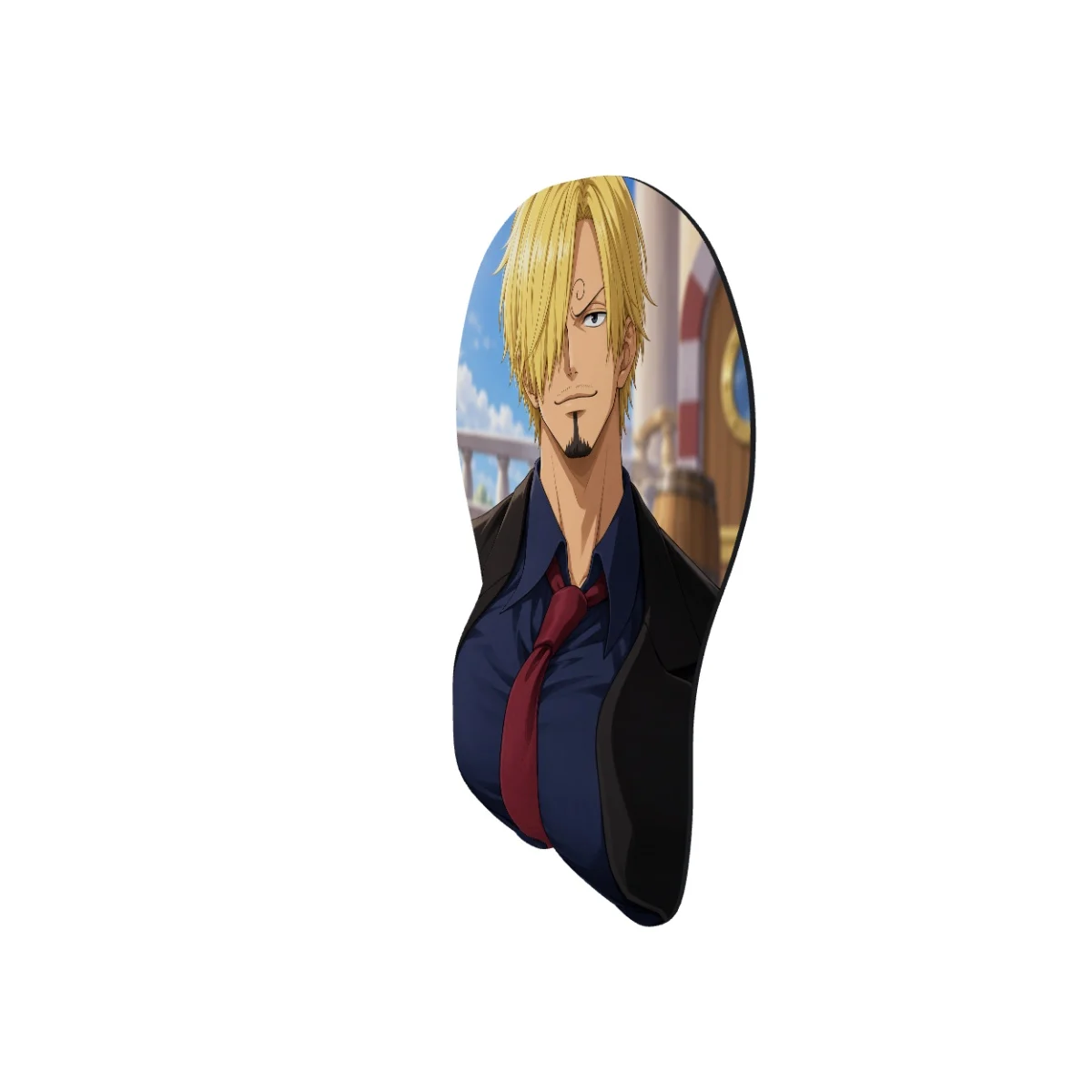
The side view helps distinguish the flat mouse surface from the raised section. Follow the edge into the support, then compare that area with the front image. The clothing, artwork placement and outline should describe the same design in every view; a different angle is not a different product.
A side render cannot tell you how the material feels in your hand or guarantee how comfortable a particular height will be for you. It also is not a ruler. Use the listed maximum raised height rather than estimating millimeters from the apparent thickness of the image.
Match the pictured shape to the selected option
In this example, Small Chest is 26 × 21 × 2.8 cm. The listing also offers Medium at 32 × 26 × 3 cm and XL at 43 × 37 × 6 cm. The Medium and XL options use their respective existing shapes; they are not simply larger copies of the pictured Small Chest model. The shared gallery remains an illustration of Small Chest when you select another size.
This matters if you want a particular contour or support position. Check the option label, full measurements and image disclosure together. Use our size and price guide to compare families, and the desk-fit walkthrough to measure the space you actually have. Ask for clarification before ordering if the selected shape is not clear from the available material.
Know when to request another check
Digital previews illustrate artwork placement; they are not finished-product photographs or a substitute for a physical sample. Screen settings, print material and the sculpted surface can affect the final appearance. If your choice depends on exact color matching or a feature sitting precisely on a raised area, identify that requirement before ordering.
For your own uploaded artwork, the custom artwork guide explains flat-layout review and the proof process. For a collection design, send the product link, selected size and the detail you need checked through our contact page. Asking “Does this image show the size I selected?” is more useful than relying on the gallery to imply an answer.
A final thirty-second gallery check
- The front image shows the design and crop you intend to buy.
- The scene contains the same design; you understand that its accessories are not included.
- The side view makes the raised area clear without being treated as an exact measurement.
- The selected size and style match your expectations, even if the gallery depicts another option.
- Any unresolved requirement about color, contour or precise placement has been clarified.
Prepared by the 3DMousepad store team using our product specifications and published store guides. Product illustrations are not scale drawings. Check the product page for the current options, price and availability. Ask us about your setup or suggest a correction.
Keep exploring
Ordering Two Mousepads? How Express Shipping Adds Up
Calculate express shipping from combined item weights, with worked examples for two Small pads, mixed sizes and full-body orders.
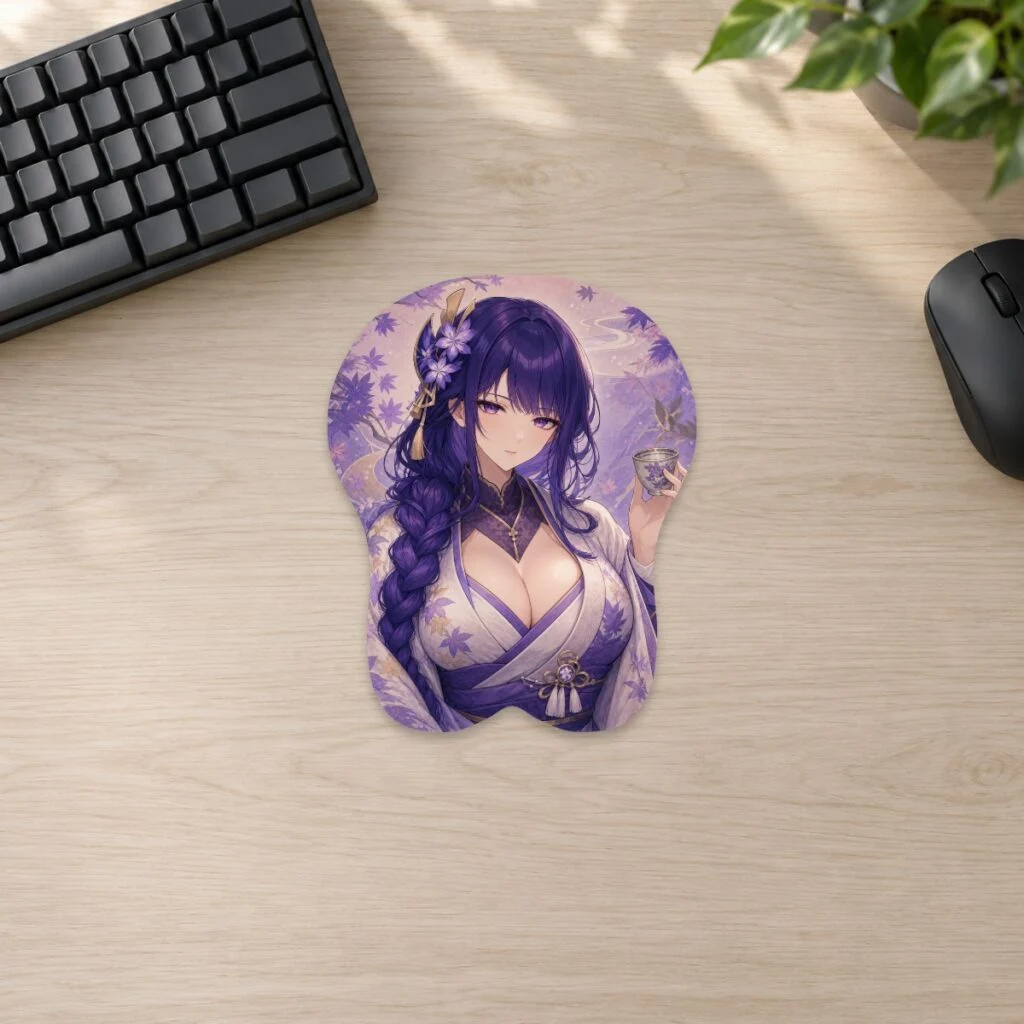
Genshin Impact Desk Setup Ideas by Element
Use a Genshin Impact element as the palette, choose one hero piece and keep the rest of the desk practical, restrained and easy to reset.
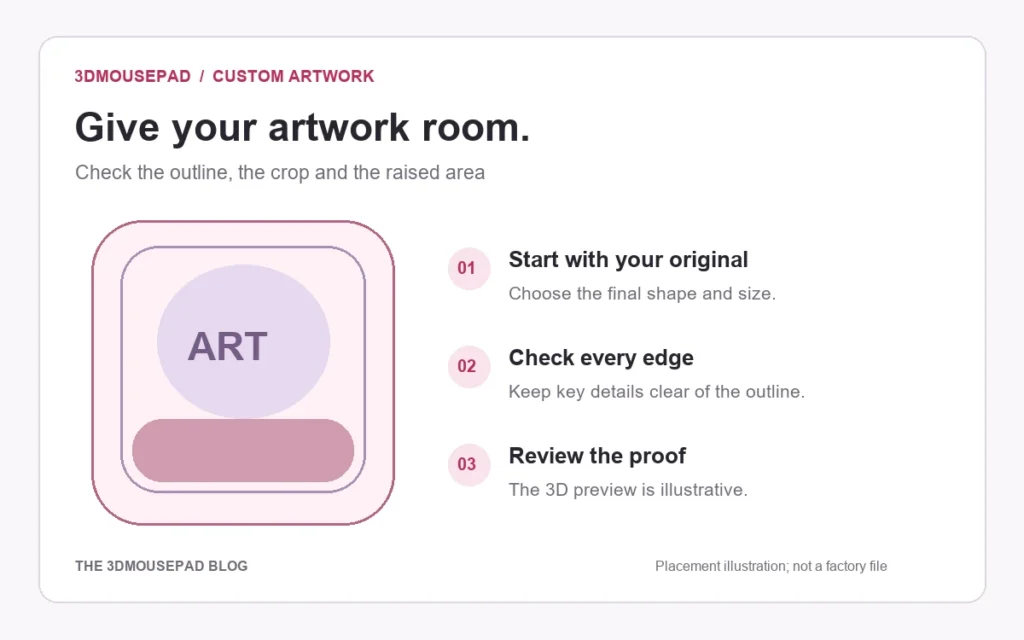
Commissioning Art for Merch: Rights and Licensing Basics
Define the product, quantity, commercial use, credit, fees and deliverables in writing before commissioning artwork for merchandise.