Custom artwork
Wide Artwork on a 3D Mousepad: Compare Crop and Background Space
Use a worked landscape-image example to compare Fill pad and Fit image, then check curved edges and the raised area at your chosen mousepad size.
Use a worked landscape-image example to compare Fill pad and Fit image, then check curved edges and the raised area at your chosen mousepad size.
Start with the image proportions and the pad orientation
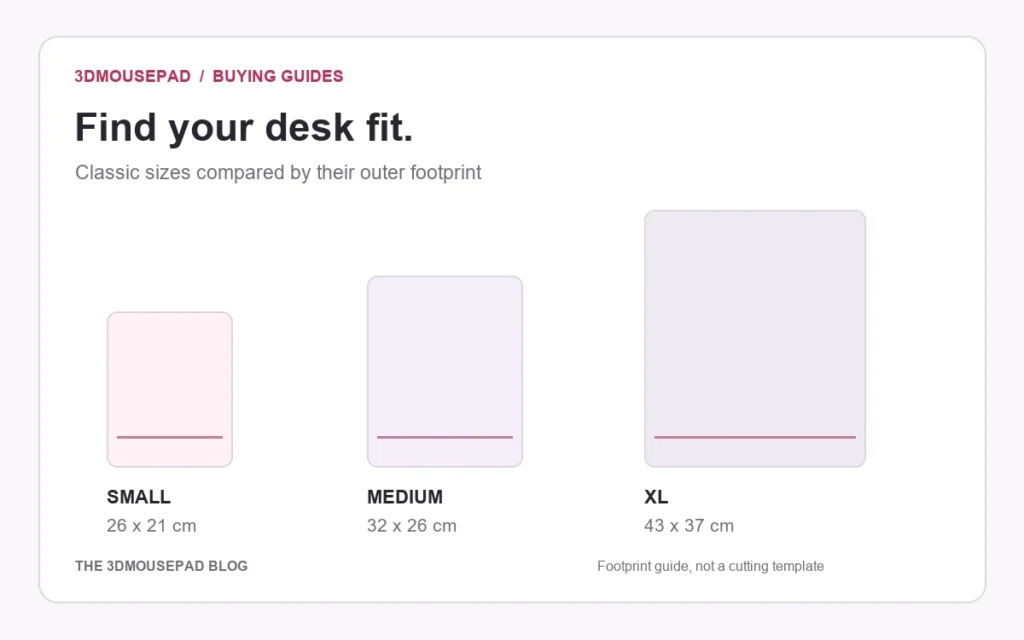
A wide scene and an upright mousepad have different proportions. Before uploading, identify which parts of the scene must remain visible. Is the whole landscape essential, or can the composition lose scenery at the sides? Classic Small is listed as 26 cm long and 21 cm wide in the size guide. Use that orientation when planning. The comparison below uses the outer rectangular bounds only; the actual silhouette has curved edges and a raised support.
Work through a wide-image example
Suppose your source is 4,000 pixels wide and 2,250 pixels high, a 16:9 landscape image. If its full width is fitted into a 21 cm-wide rectangle without distortion, its height is about 11.8 cm: 21 × 2,250 ÷ 4,000. That is much shorter than the pad’s 26 cm outer length. Keeping the whole source therefore leaves substantial space to address above and below it in this simplified example. It does not mean the source is faulty; it means the proportions differ.
Compare the cost of filling the height
If the same image fills a 26 cm-high rectangle without distortion, its width becomes about 46.2 cm: 26 × 4,000 ÷ 2,250. A 21 cm-wide window then retains only about 45% of that width. With a centered crop, both sides lose artwork; shifting the image changes which side is retained. These rounded calculations illustrate the trade-off. They are not the studio’s cutting geometry, an exact visible-pixel count or a promise about the supplier’s final crop.
Choose the composition you actually want
For a single subject with expendable scenery, cropping may work after repositioning the source. For two people or a scene with important details at opposite ends, preserving more of the image may matter more than filling every edge. You can also prepare an original composition with additional background space above and below, where you have the rights and source material to do so. Do not independently stretch width or height to force a fit. The background guide explains how to review exposed areas and borders.
Test both modes on the real outline
In the custom studio, compare Fill pad with Fit image at the final family, size and style. Fit image can show more of the source while leaving a border, and curved corners can still remove details. Inspect the whole outline as well as faces, hands and text. Then use the 3D view to check how the composition crosses the support. A mathematically correct rectangular fit does not establish that every important part survives the real shape.
Save a separate decision for each size
If you change size or family, repeat the crop review instead of carrying over approval from another layout. Zooming also changes effective resolution, so check the current studio warning after making placement changes. Save the selected layout beside the original and name it by size and placement choice. Follow the custom artwork guide for the final review. A saved preview illustrates your intention; production still requires an accepted order and a reviewed proof.
Prepared by the 3DMousepad store team using our product specifications and published store guides. Product illustrations are not scale drawings. Check the product page for the current options, price and availability. Ask us about your setup or suggest a correction.
Keep exploring
Why Custom Mousepad Colors May Differ from Your Screen
Review source files, viewing conditions and proof limits when color matters for a custom mousepad, with practical checks before and after ordering.
Using a Wired Mouse with a 3D Mousepad: Keep the Cable Clear
Check cable slack, keyboard edges and the raised wrist support when arranging a wired mouse on a 3D mousepad, without crowding its movement area.
QR Codes on a Custom Mousepad: Layout and Testing Checks
Planning a QR code in custom mousepad artwork? Check its destination, clear margin, crop and physical test requirements before approving production.