
Care & desk setup
Using a Wired Mouse with a 3D Mousepad: Keep the Cable Clear
Check cable slack, keyboard edges and the raised wrist support when arranging a wired mouse on a 3D mousepad, without crowding its movement area.
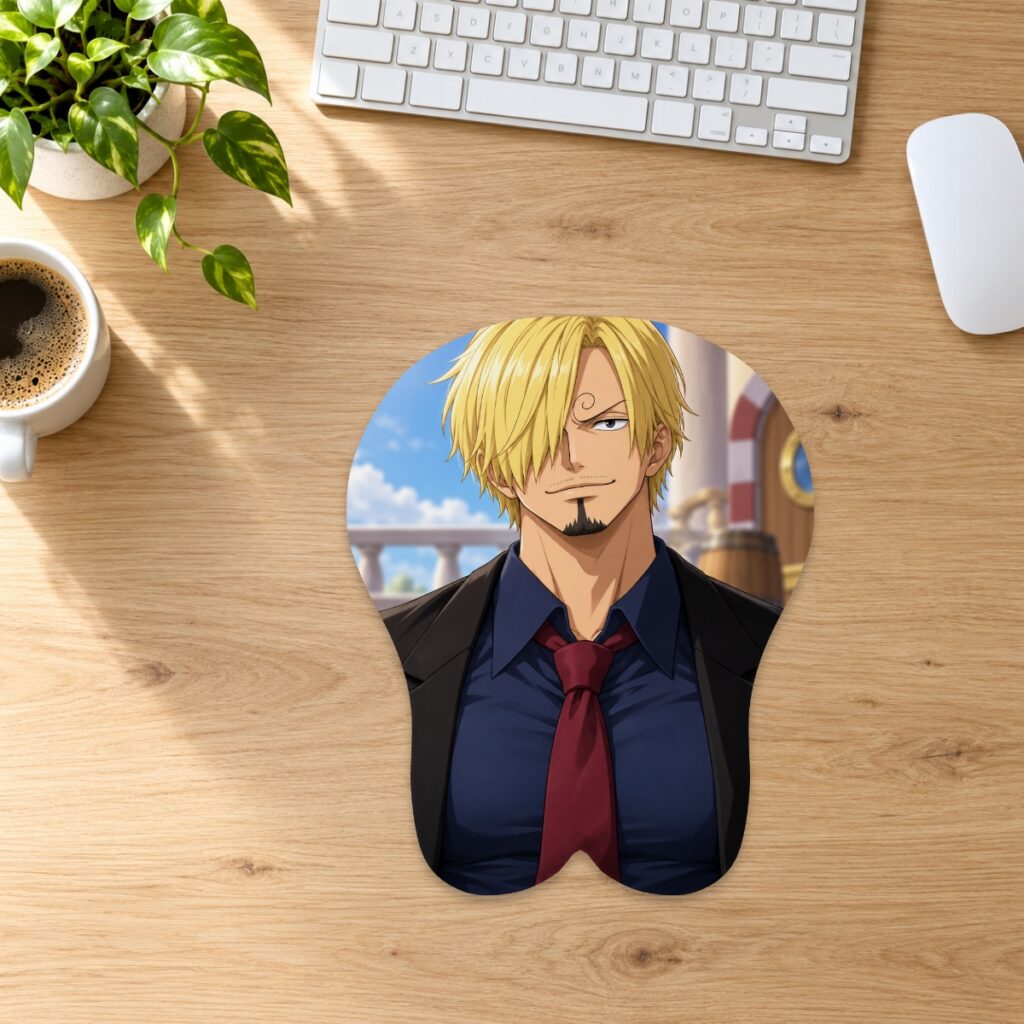
Check cable slack, keyboard edges and the raised wrist support when arranging a wired mouse on a 3D mousepad, without crowding its movement area.
Find where the cable first meets an obstacle
Place the keyboard, mouse and pad where you normally use them. Follow the cable from the mouse toward its connection and look for a keyboard corner, shelf edge or loose loop in the mouse area. Move the mouse slowly and observe where the cable becomes taut or catches. Check the route itself before choosing a different pad size. A clean-looking desk can still have a cable caught behind an object that is not visible from your seated position.
Leave slack without laying a loop across the support
The mouse needs enough available cable for the movements you actually make. At the same time, a loose loop should not rest across the raised wrist support or under the mouse. Reposition the loose section so it can move freely, then check the farthest reach again. Avoid routing it beneath the pad or weighing it down with the support. Do not pull a taut cable to force extra reach; arrange the route without straining the cable or connector.
Check the whole movement range
Try forward, backward and side-to-side movements, including the point where you normally lift and reposition the mouse. Watch whether the cable touches the keyboard, crosses the support or falls over the desk edge and catches. Repeat with nearby items in their usual places. A phone placed beside the pad, for example, can close a route that was clear during an empty-desk check. Adjust the arrangement until your required movement remains unobstructed.
Separate the outer footprint from the mouse movement area
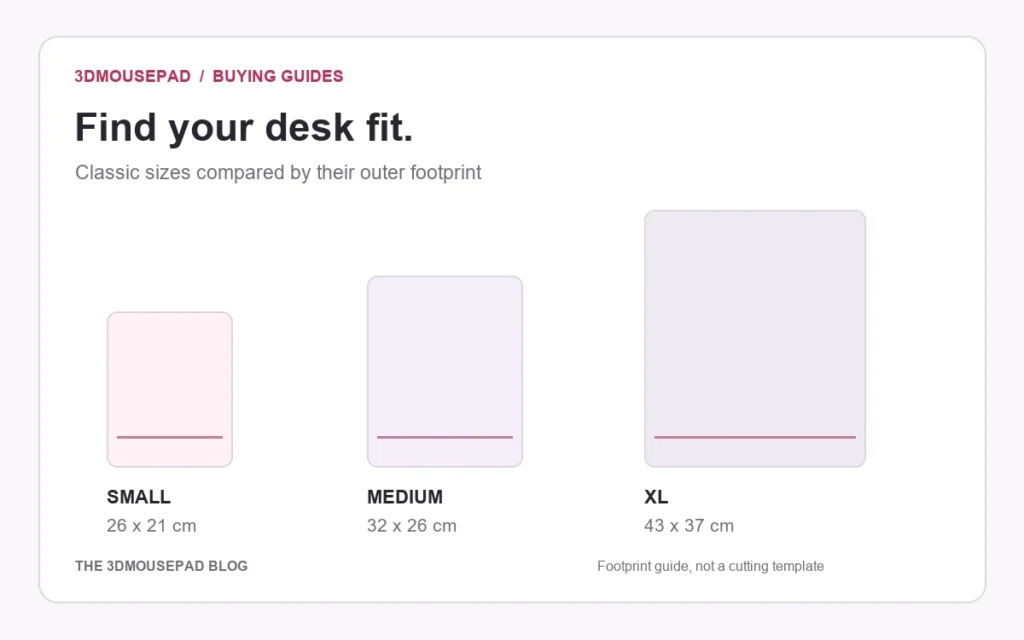
The size guide lists the mousepad’s overall length, width and maximum raised height. Those dimensions do not describe a rectangular area that is all equally available for moving the mouse: the silhouette and raised support occupy part of the footprint. Keep the support in its intended position near your hand when comparing layouts. Use the front, desk and side image guide to understand the views, while remembering that a render is not a clearance measurement.
Change one part of the arrangement at a time
Suppose the cable catches a keyboard corner only during a rightward movement. First move the loose cable clear of that corner and repeat the same movement. If it still catches, try a small keyboard-position adjustment and repeat again. This simple comparison helps you identify the obstruction without changing every part of the desk at once. If the required route and movement will not fit the available space, reconsider the layout or pad footprint before ordering.
Keep the pad flat while making adjustments
Do not fold a corner, compress the support or cut the pad to create a cable channel. Keep the underside and desk clean and dry, following the care guide. If the pad’s fabric, seam or support appears damaged, stop using it and contact the store with clear photos. For a cable or mouse fault, follow that device manufacturer’s instructions. A clearance check helps arrange the desk; it does not establish compatibility with every wired mouse or diagnose an electronic fault.
Prepared by the 3DMousepad store team using our product specifications and published store guides. Product illustrations are not scale drawings. Check the product page for the current options, price and availability. Ask us about your setup or suggest a correction.
Keep exploring
Wide Artwork on a 3D Mousepad: Compare Crop and Background Space
Use a worked landscape-image example to compare Fill pad and Fit image, then check curved edges and the raised area at your chosen mousepad size.
Why Custom Mousepad Colors May Differ from Your Screen
Review source files, viewing conditions and proof limits when color matters for a custom mousepad, with practical checks before and after ordering.
QR Codes on a Custom Mousepad: Layout and Testing Checks
Planning a QR code in custom mousepad artwork? Check its destination, clear margin, crop and physical test requirements before approving production.