
Care & desk setup
Can You Put a 3D Mousepad on Top of a Desk Mat?
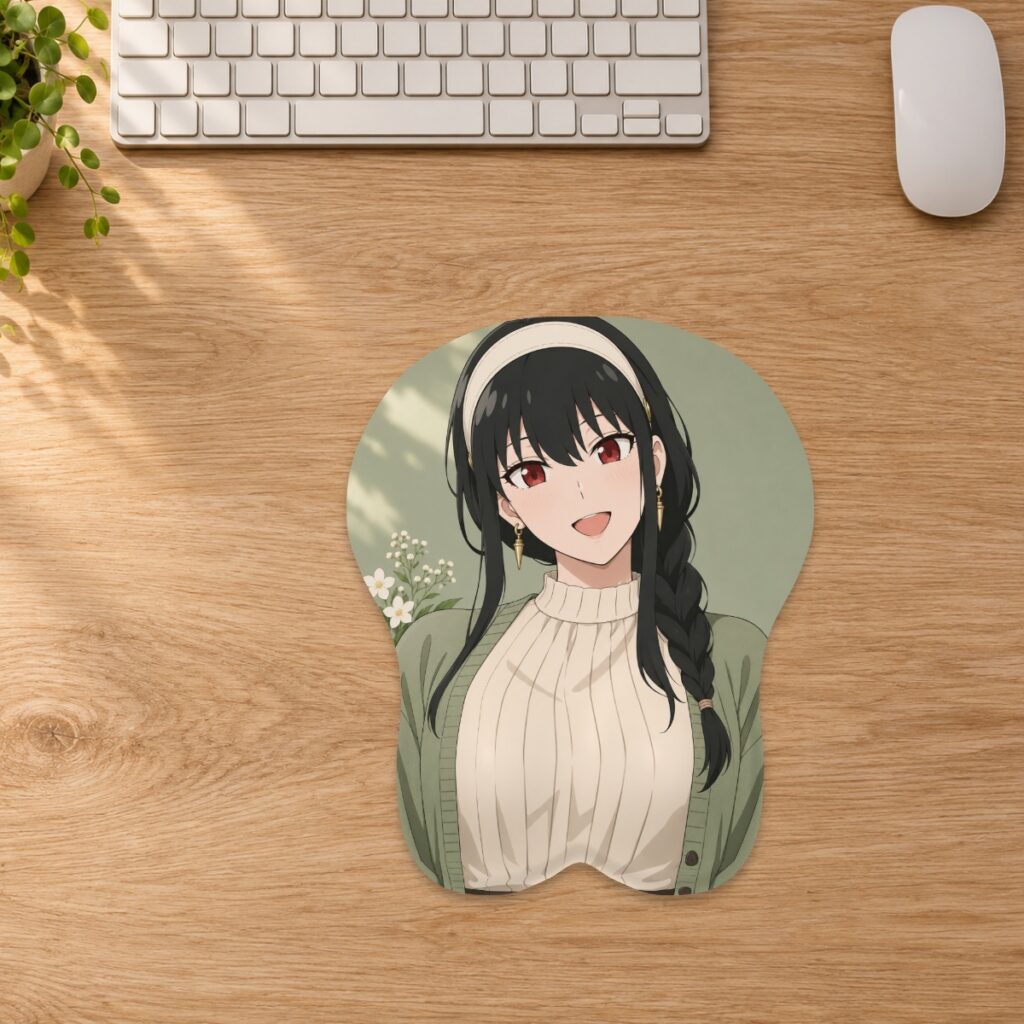
Check flatness, stability and usable mouse space before layering a 3D mousepad over a desk mat. Test your own setup rather than assuming the layers will grip.

Check flatness, stability and usable mouse space before layering a 3D mousepad over a desk mat. Test your own setup rather than assuming the layers will grip.
Start with a flat, dry surface
A desk mat and a shaped mousepad are two separate layers. The store lists a non-slip base for its classic custom pad, but that does not establish compatibility with every fabric, coating or cushioned mat. Check your desk mat’s instructions as well as the mousepad’s. Begin with both surfaces clean, dry and free of folds. Do not use the extra layer to hide a damaged or uneven surface.
Keep the whole base supported
Place the mousepad entirely on the mat or entirely on the desk, rather than across the mat’s edge. A stitched border, raised seam or curled corner underneath can leave part of the pad unsupported. Look along the side to check whether the base lies flat without rocking. Do not press the raised support flat or put a heavy object on it to force the layers to settle.
Try the movements you actually make
With the mousepad in position, move your mouse through the space you normally use for work or games. Observe whether the upper pad slides on the mat or the mat itself moves on the desk. Check several directions, including movements toward the keyboard. This is a practical check of your setup, not a laboratory grip test. If either layer moves or bunches, try placing the mousepad directly on a suitable clean desk surface instead of adding adhesive.
Account for the extra height
Layering raises the entire mousepad by the thickness of the desk mat. The listed mousepad height is the maximum raised height, not the thickness of its flat area; it does not include an underlying mat. Recheck your hand position and the clearance beside your keyboard in the layered setup. If the arrangement feels awkward, remove a layer or reposition the pad. Read the measurement guide before comparing sizes.
Check space with your actual keyboard layout
A large desk mat can look spacious while leaving little usable room next to a wide keyboard. Put the keyboard, mouse and any nearby controls where you normally use them, then mark out the mousepad footprint. The Small, Medium and XL desk-fit guide explains footprint comparisons. Leave enough clear space for your own mouse movements rather than treating the entire desk mat as available mouse space.
Separate the layers for cleaning
Lift the pad to inspect both surfaces when cleaning. Follow each item’s own care instructions and let both dry fully before reassembling. For the 3D mousepad, the store recommends gentle wiping and flat air drying, away from direct heat; see the care guide. Do not trap a damp layer underneath it. If the base, seam or support appears damaged, stop using the item and contact the store with photos and the product or order details.
Prepared by the 3DMousepad store team using our product specifications and published store guides. Product illustrations are not scale drawings. Check the product page for the current options, price and availability. Ask us about your setup or suggest a correction.
Keep exploring
Choosing a Pet Photo for a Custom 3D Mousepad
Choose a pet photo with a clear face and room around the subject, then check how ears, paws and markings fit the curved mousepad layout.
Before You Order: Check Your Mousepad Delivery Address
Check the recipient, apartment details, postal code and available delivery service before ordering a mousepad, especially when sending a gift.
Which Artwork File Is Final? A Custom Mousepad Revision Checklist
Keep your original artwork, size layout and approved revision easy to identify with a simple file checklist before ordering a custom mousepad.