
Custom artwork
QR Codes on a Custom Mousepad: Layout and Testing Checks
Planning a QR code in custom mousepad artwork? Check its destination, clear margin, crop and physical test requirements before approving production.
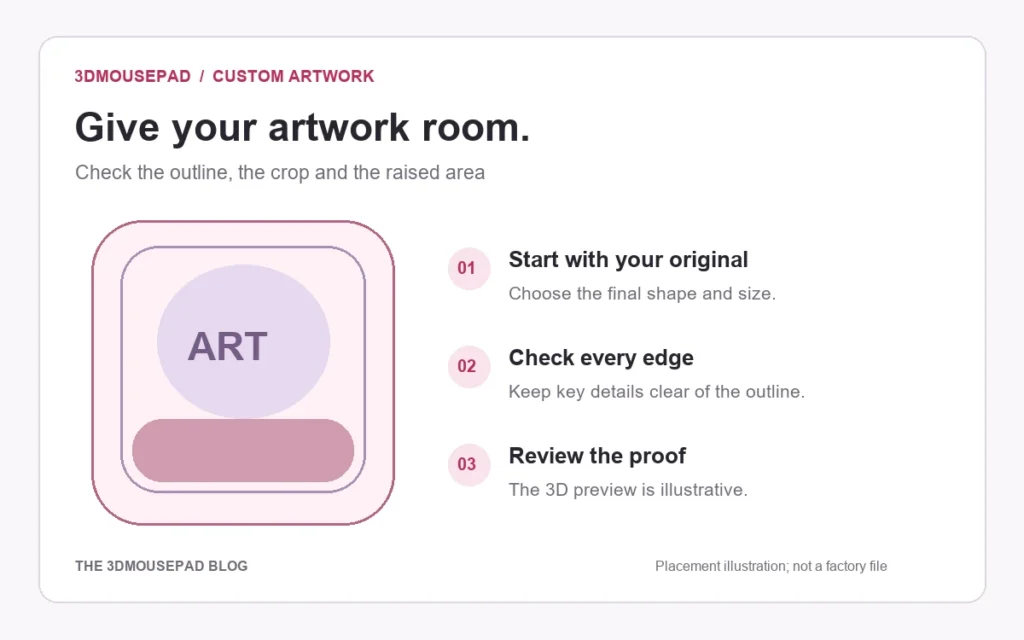
Planning a QR code in custom mousepad artwork? Check its destination, clear margin, crop and physical test requirements before approving production.
Confirm the destination before arranging the artwork
A QR code that works on a screen has not been validated on a fabric mousepad. If scanning matters to your design, discuss feasibility with the store before ordering. Start by scanning the source code and checking the exact page it opens, including on a phone without your account signed in. Decide whether visitors should see a portfolio, instructions or another public page. Keep a written record of the intended destination so a visually similar code is not substituted during revisions.
Reserve the margin as part of the code
DENSO WAVE’s QR Code area guidance specifies a clear margin four modules wide on every side. A module is one small square in the symbol. For example, a symbol 21 modules wide needs an area 29 modules wide when those margins are included: 21 + 4 + 4. This arithmetic explains the space requirement; it is not a minimum printable size for fabric. Keep artwork, lettering and decorative frames outside the margin.
Keep the complete square away from curves
Treat the code and its clear margin as one object when composing your image. Keep that object away from the cut outline, raised support and central groove. Do not stretch the square into a rectangle to fit a gap. A location that looks clear in rectangular source artwork may cross a curve after fitting it to the pad. The custom artwork guide explains how the flat layout and illustrative 3D view serve different placement checks.
Recheck after every crop or size change
In the custom studio, Fill pad can crop artwork, while Fit image can leave a border and still lose details near curved corners. Inspect all four sides of the code’s own margin after zooming or moving the design. Do not confuse an exposed pad background with a margin preserved inside the source file. Keep the original code and editable composition separately, and export an accepted JPG, PNG or WebP within the current upload limit. Recheck effective resolution for the final layout.
Separate screen checks from a physical sample test
Scan the exported artwork to catch a wrong destination before submitting it. If function is essential, ask whether a physical sample and an agreed scan test can be arranged before committing to the order. A paper print or a screen scan is only an intermediate check. It cannot establish how the finished fabric, placement and raised form will behave. No scan reliability, universal physical code size or sample availability is promised by this guide.
Record the functional requirement with the proof
Identify the chosen size, final artwork file, intended destination and required scan behavior when discussing the design. If a revision moves or resizes the code, review it again instead of relying on a previous check. The store requires an accepted order and a reviewed proof before custom production; saving a studio layout alone does not begin that process. Keep the accepted version with your records, and resolve any testing requirement before approval rather than treating a digital preview as proof of physical performance.
Prepared by the 3DMousepad store team using our product specifications and published store guides. Product illustrations are not scale drawings. Check the product page for the current options, price and availability. Ask us about your setup or suggest a correction.
Keep exploring
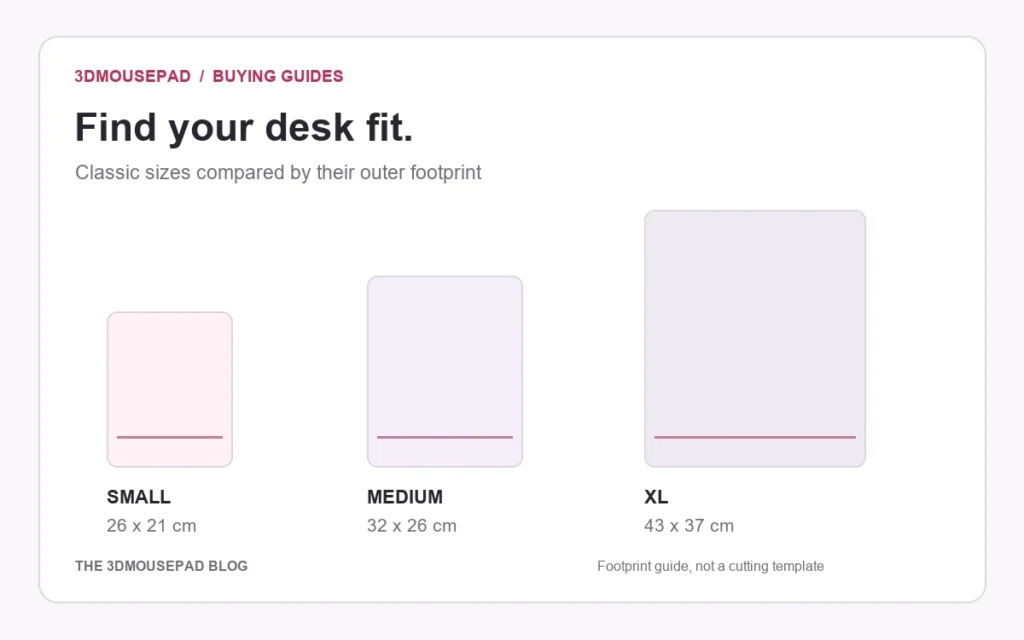
Wide Artwork on a 3D Mousepad: Compare Crop and Background Space
Use a worked landscape-image example to compare Fill pad and Fit image, then check curved edges and the raised area at your chosen mousepad size.
Why Custom Mousepad Colors May Differ from Your Screen
Review source files, viewing conditions and proof limits when color matters for a custom mousepad, with practical checks before and after ordering.
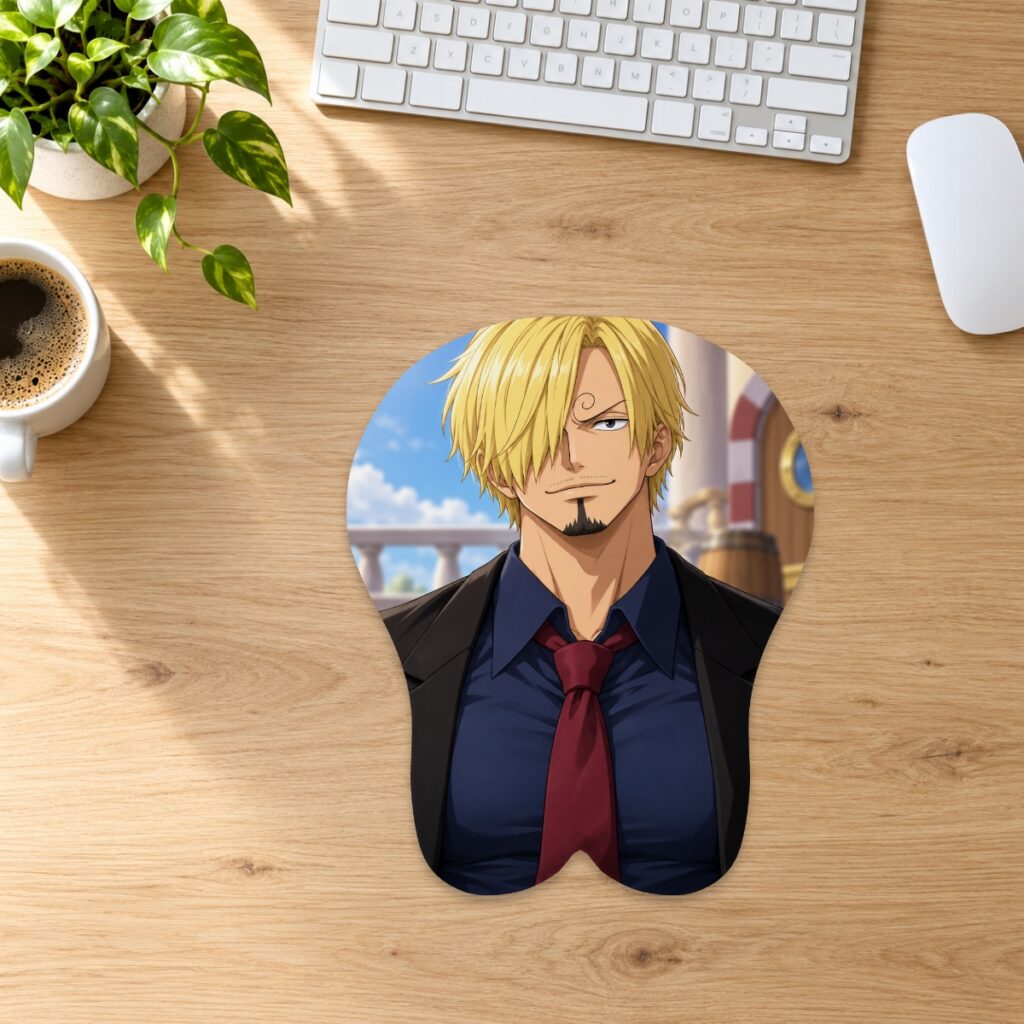
Using a Wired Mouse with a 3D Mousepad: Keep the Cable Clear
Check cable slack, keyboard edges and the raised wrist support when arranging a wired mouse on a 3D mousepad, without crowding its movement area.